Toggle content row
version 0.1 Read time 1m 42s
Purpose
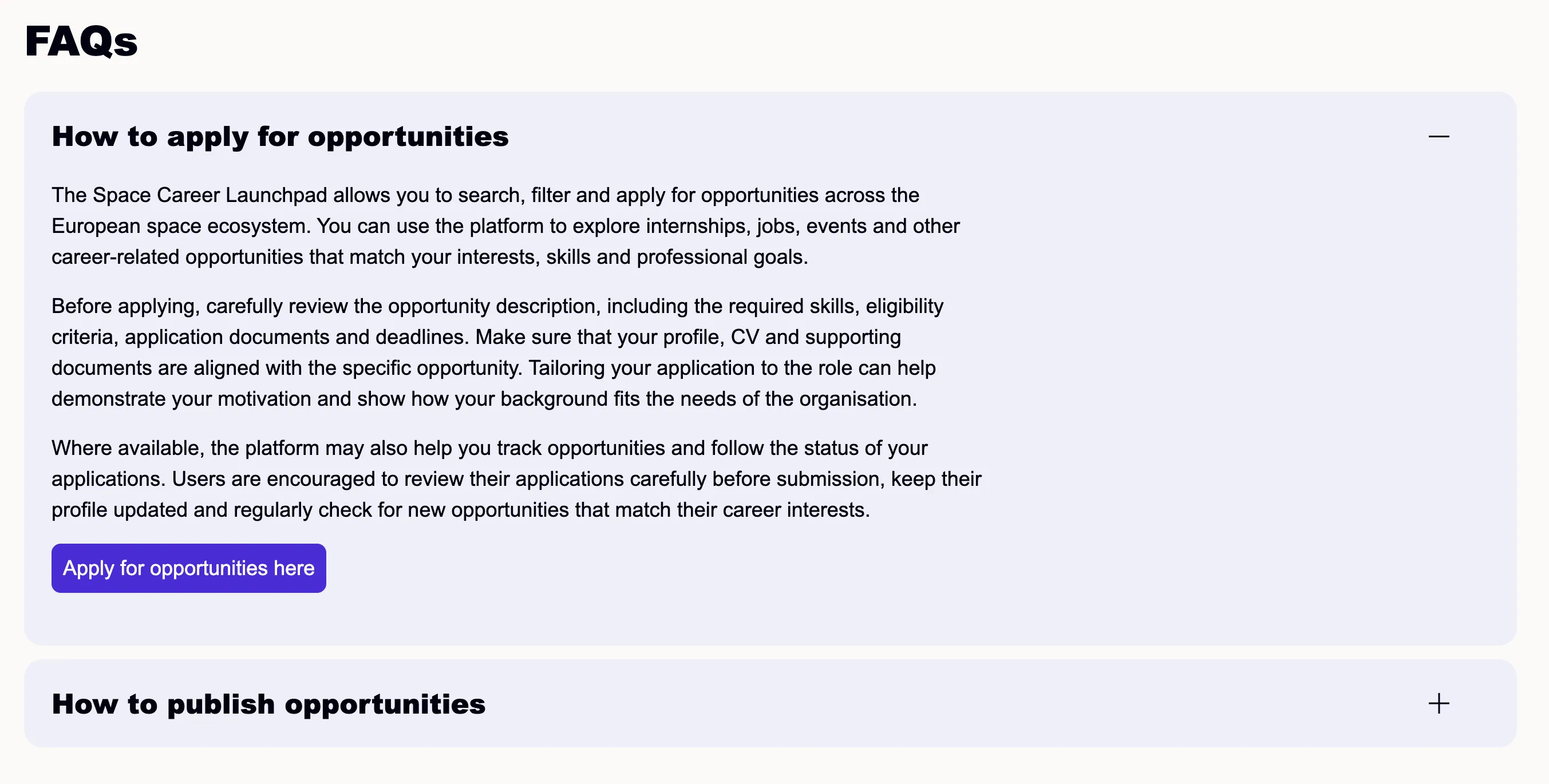
A Toggle content row is an accordion — a list of click-to-reveal entries. The classic use case is a FAQ section, but it works for any set of “title + expandable answer” content. Each entry is a Toggle content item nested inside the row.
When to use
Use it for frequently asked questions or optional supporting information that visitors may want to reveal individually. Use a standard text section when every visitor needs to read the information immediately or when the entries must be read in sequence.
Steps
1. Add the row
In Content items, click Add Toggle content row.
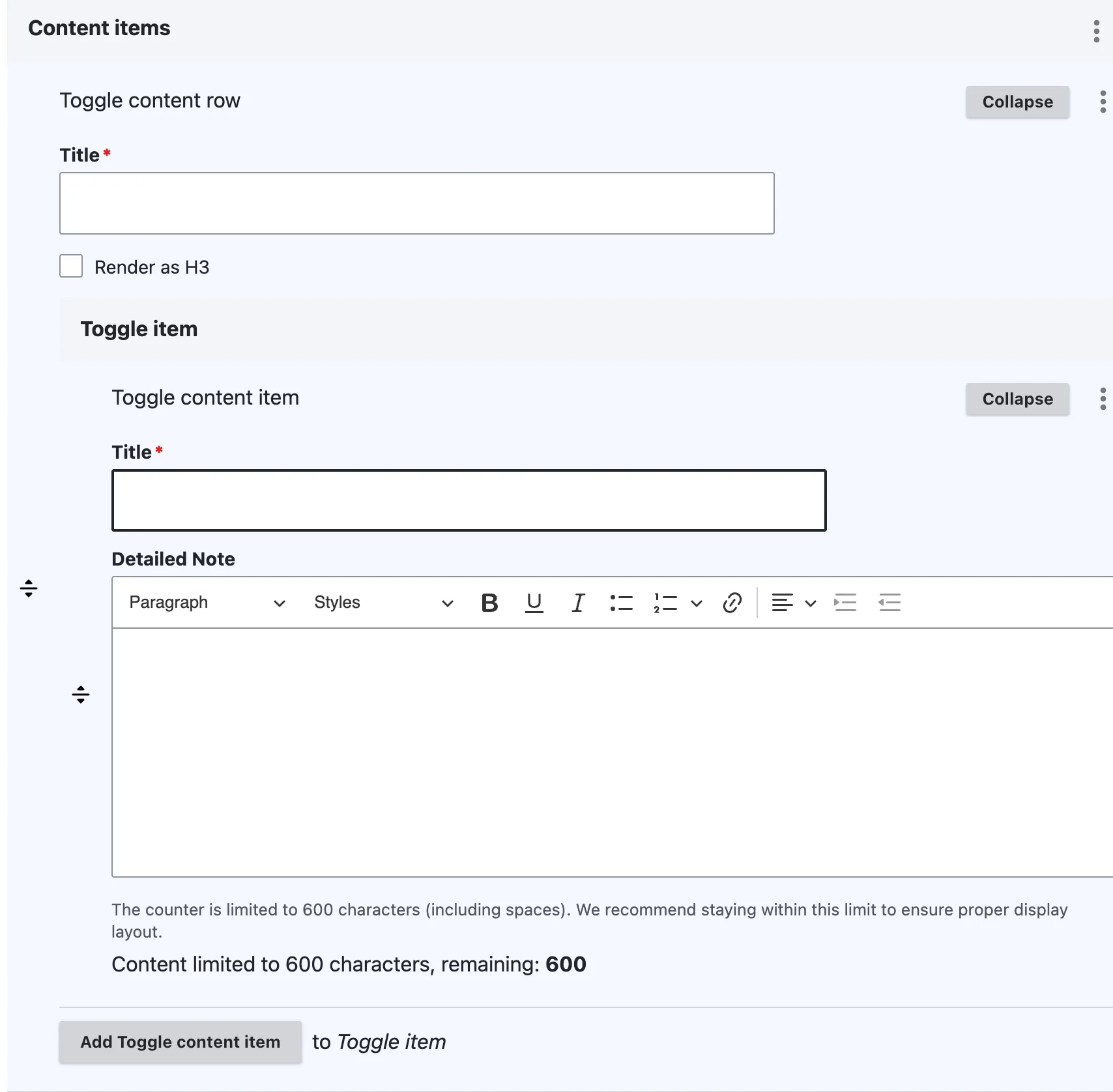
A row block appears with:
- Row fields: Title, Render as H3.
- A panel labelled Items with the button Add Toggle content item.
2. Fill the row header (optional)
- Title — section title above the accordion (“Frequently asked questions”). Optional.
- Render as H3 — tick when nested under another heading.
3. Add the first entry
Click Add Toggle content item. A sub-form opens with two fields:
- Title (required) — the visible click target (the question). Phrase as the visitor would ask it.
- Detailed Note (optional but expected) — the rich-text answer revealed when the visitor clicks. Use the full rich-text toolbar (headings, lists, links, alignment).
4. Add more entries
Click Add Toggle content item for each Q&A pair. Drag the row handles to reorder — visitors see the order set in the back-office.
5. Save
Click Save on the page-editing form.
Field explanations
| Field | What editors should enter or select |
|---|---|
| Row Title | An optional heading above the complete accordion, such as “Frequently asked questions”. |
| Render as H3 | Select when the row belongs under an existing H2. |
| Item Title | The required visible click target. For an FAQ, write the question as a visitor would ask it. |
| Detailed Note | The answer or supporting content revealed when the item is expanded. |
Common mistakes
- Empty Detailed Note. A toggle that expands to nothing is broken. If a question genuinely has no answer yet, don’t publish it.
- Question buried in body. Put the question in the Title field, not at the start of the Detailed Note. The Title is the click target — it has to read as a question on its own.
- Massive answers. Toggle entries should be one or two paragraphs. For longer content, link out via a button at the end of the answer.
Tips
- All items render collapsed by default. There is no “first item open” option.
- For very long FAQs, split into multiple Toggle Rows separated by Heading content items — group by theme (“About the data”, “About access”, “Technical questions”).
- The collapse pattern is the same one used by File content section when Collapsible section is selected.
Example
The following example shows a set of questions that visitors can expand individually.