Metadata and SEO
version 0.1 | Read time 2m 40s
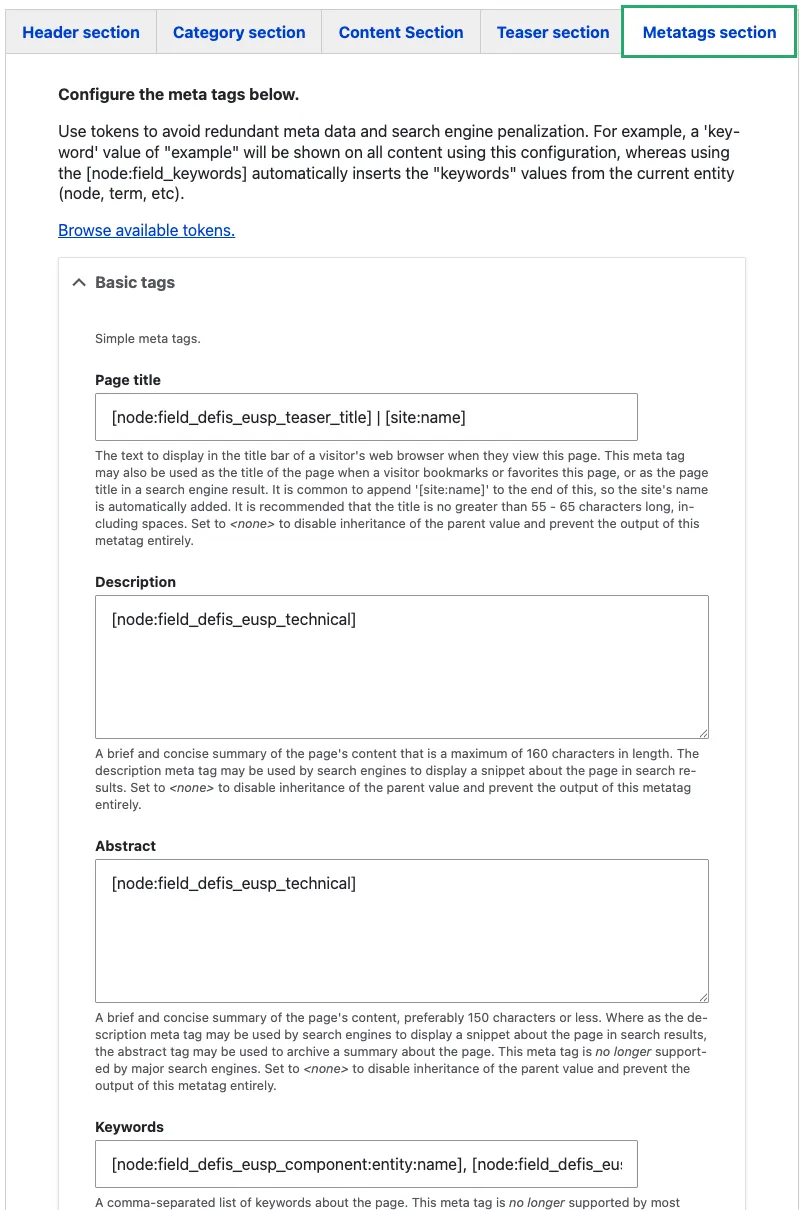
Metadata controls how a page may appear in external search-engine results and when its URL is shared on social media. The CMS creates this information automatically from the page content, so most editors do not need to change the Metatags tab.
What editors normally need to do
Complete the page’s Title, teaser or summary, and teaser image. The CMS uses these fields to create suitable metadata automatically.
Before publishing, check that:
- the Title clearly identifies the page;
- the teaser or summary makes sense when read on its own; and
- the teaser image is suitable for public sharing.
These defaults are sufficient for most pages.
Values created automatically
| Metadata | Default source | Where it may appear |
|---|---|---|
| Search-result title | The page’s main Title, followed by the site name | The linked title in external search-engine results |
| Description | The teaser or summary | The text below the title in search results |
| Social title, description, and image | The main Title, teaser text, and teaser image | The preview card created when the URL is shared |
| Canonical URL | The page’s URL alias | Used by search engines to identify the preferred version of the URL |
The social-sharing values are also known as Open Graph metadata.
When to use a custom value
Change an automatic value only when it does not represent the page clearly. For example:
- the page title is too long or unclear when shown as a search result;
- the teaser relies on context that will be missing from a search result; or
- a different image is needed for social sharing.
Where possible, keep a custom search-result title under 60 characters.
Change the metadata
- Open the page for editing.
- Select the Metatags tab.
- Find the value that needs to change. Its automatic value is shown in grey.
- Enter the custom value.
- Save the page and check the published result.
Leave all other fields unchanged so that they continue to use their automatic values.
Change the social-sharing image
By default, the social-sharing image is the page’s teaser image. If the page needs a different image, such as a campaign-specific visual, add it to the og:image field in the Metatags tab.
Use an image that is 1200 × 630 pixels for a suitable social-card format.
Control external search-engine visibility
Published pages are included in the XML sitemap at /sitemap.xml and can be indexed by external search engines by default.
To prevent a specific page from appearing in external search-engine results, set its Robots metatag to noindex, follow. The page will remain published and accessible through its URL.
Important: This is a high-impact setting. Use it only when the page is intentionally excluded from public search results and the responsible content owner has approved the change.
This setting controls external search engines. It is separate from the portal’s internal search and referenced-content listings.
Refresh a social-media preview
Social platforms may continue to show an older preview after metadata has changed. Paste the published page URL into the platform’s preview tool and request a fresh scan:
- Facebook: Sharing Debugger (
developers.facebook.com/tools/debug) - LinkedIn: Post Inspector (
linkedin.com/post-inspector) - X: Card Validator (
cards-dev.twitter.com/validator)
The updated preview may otherwise take several days to appear.
How the CMS builds metadata
The following automatic settings explain some values you may see in the Metatags tab:
- Open Graph type tells a social platform what kind of page is being shared. The CMS uses
articlefor News,eventfor Event, andwebsitefor other content types. Editors normally leave this unchanged. - Canonical URL identifies the preferred public address of a page. The CMS creates it from the page’s URL alias, so editors do not need to enter it separately.
- Tokens insert information from another field automatically. Type
[in a metadata field to view the available tokens. Use a token only when the required value should continue to follow another field; otherwise, keep the automatic default or enter the approved custom text.