Chronological event row
version 0.1 Read time 2m 32s
Purpose
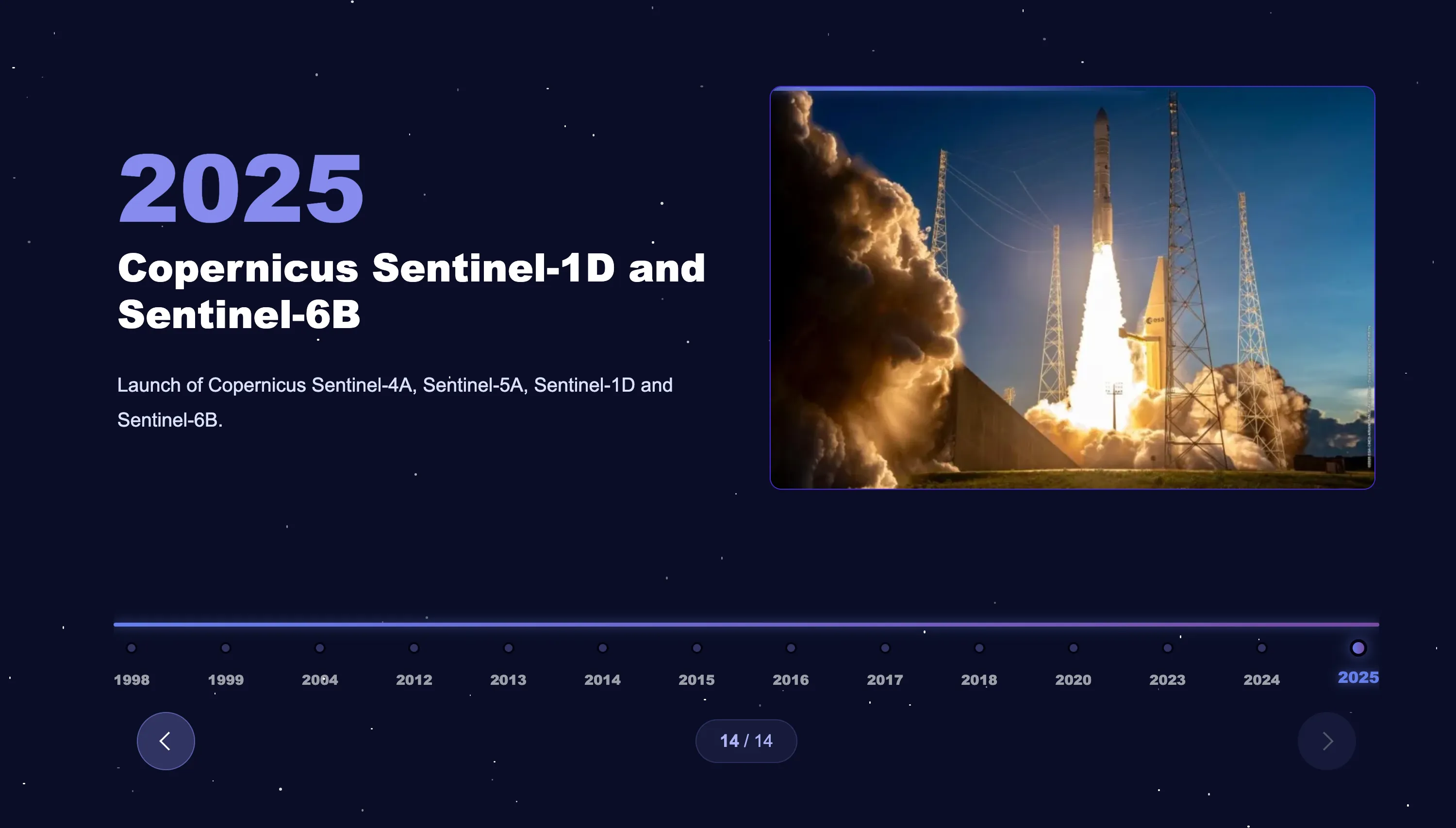
A Chronological Event Row is a timeline rendered as a horizontal slider — one milestone per slide, with a progress track of year markers underneath and previous/next arrows. Use it for programme milestones, mission histories, deployment timelines — content where the date matters as much as the description.
Each timeline entry is a Chronological Event Item nested inside the row. Unlike Sequential content row, the date is a real date time field — pick from the date picker, not free text.
When to use
Use it when real dates are essential to understanding a history, programme phase, launch sequence, or set of milestones. Use a Sequential content row when the order is conceptual and does not depend on dates.
Steps
1. Add the row
In Content items, click Add Chronological Event Row.
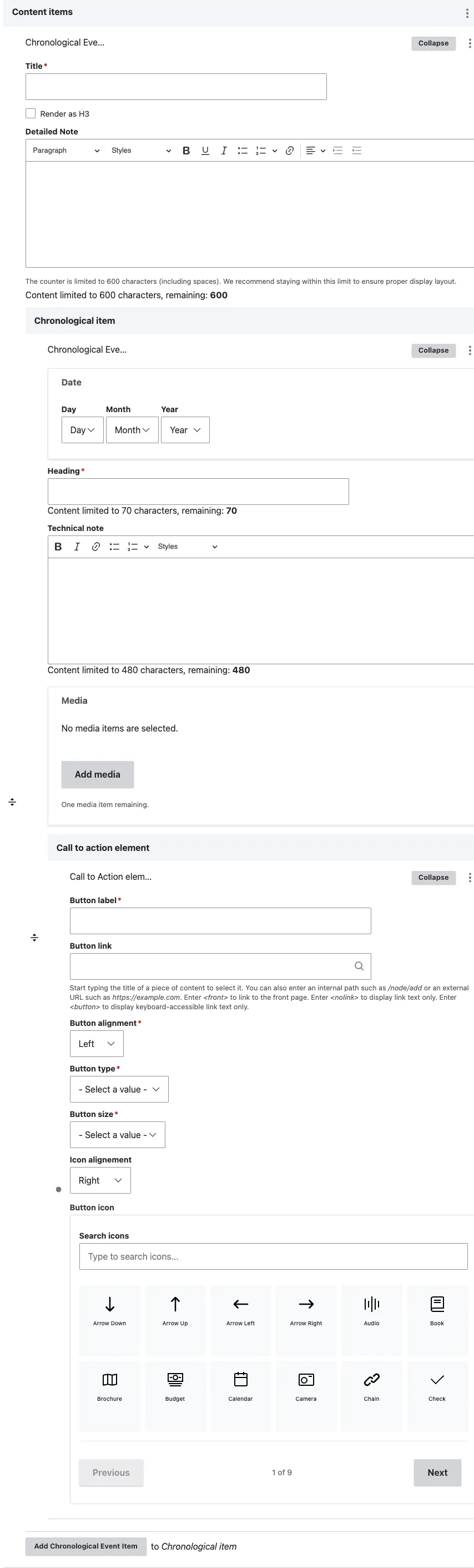
A row block appears with the row-level Title, Render as H3, and Detailed Note fields, followed by a Chronological item panel containing the Add Chronological Event Item button.
2. Fill the row header
- Title — section title above the timeline (“Programme milestones”).
- Render as H3 — tick when nested under another heading.
- Detailed Note — optional rich-text intro shown above the timeline, limited to 600 characters. Use it to give the timeline context (“Key dates from launch to operational service”).
3. Add the first milestone
Click Add Chronological Event Item. A sub-form opens with five fields:
- Date — select the day, month, and year. Only the year is displayed, but entering a complete date prevents the timeline from showing an incorrect fallback year.
- Heading (required) — the milestone title, limited to 70 characters, for example “Sentinel-6 launch”.
- Technical note (recommended) — the public-facing explanation of what happened and why it matters, limited to 480 characters.
- Media (optional) — one image, AV portal video, podcast, or remote video.
- Call to action element — this field is not displayed by the current component. Leave it empty and add any necessary link to the Technical note.
4. Add more milestones
Click Add Chronological Event Item for each entry. The timeline does not sort itself by date. Drag the row handles into chronological or reverse-chronological order and use the same direction throughout. The published slides and year markers follow this editor-defined order.
5. Save
Click Save on the page-editing form.
Field explanations
| Field | What editors should enter or select |
|---|---|
| Row Title | The required heading above the complete timeline. |
| Render as H3 | Select when the timeline belongs under an existing H2. |
| Detailed Note | An optional public introduction of up to 600 characters. |
| Date | The milestone’s day, month, and year. Only the year is displayed, but a complete date prevents an incorrect fallback year. |
| Item Heading | The required milestone title, limited to 70 characters. |
| Technical note | The public-facing milestone description, with a recommended maximum of 480 characters. |
| Media | One optional image, AV portal video, podcast, or remote video. |
| Call to action element | Present in the form but not displayed by the current component. Do not complete it; add a link within the Technical note instead. |
Common mistakes
- Empty date. The selectors are technically optional, but the year marker then silently shows the current year. Always pick a date.
- Out-of-order items. Drupal does not sort by date — order in the back-office = order on the front-end. Drag rows.
- Filling the Call to action. It looks usable but is never rendered. Link to deeper pages from the Technical note body instead.
- No body text. A heading + year alone is sparse. Use the Technical note to give the milestone context.
Tips
- For very long timelines (more than ten items) split into multiple rows by phase or decade — one giant timeline becomes hard to scan.
- If your sequence has no real dates and the order is purely conceptual (“Step 1 / Step 2 / Step 3”), use Sequential content row instead.
- Visitors see one milestone at a time and navigate with the arrows — front-load the most important milestones or accept that later entries get fewer views.
Example
The following example shows dated milestones in a visitor-controlled horizontal timeline.