Funding opportunity content type
version 0.1 Read time 3m 09s
Funding opportunity describes a call for tender, a grant, an expression of interest, or any procurement / funding instrument the programme issues. It captures the contractual basics — reference number, budget, procurement entity, deadline window — so visitors can evaluate eligibility before clicking out to the formal call page.
Like Resource, Funding Opportunity does not use a stack of reusable content blocks. Its body contains the call description and dedicated fields for the tender information.
Note - On funding opportunity It is still under development and will continue to evolve from its current structure.
Step-by-step: post a funding opportunity
1. Open the add form
Dashboard → + Add content → Funding opportunity.
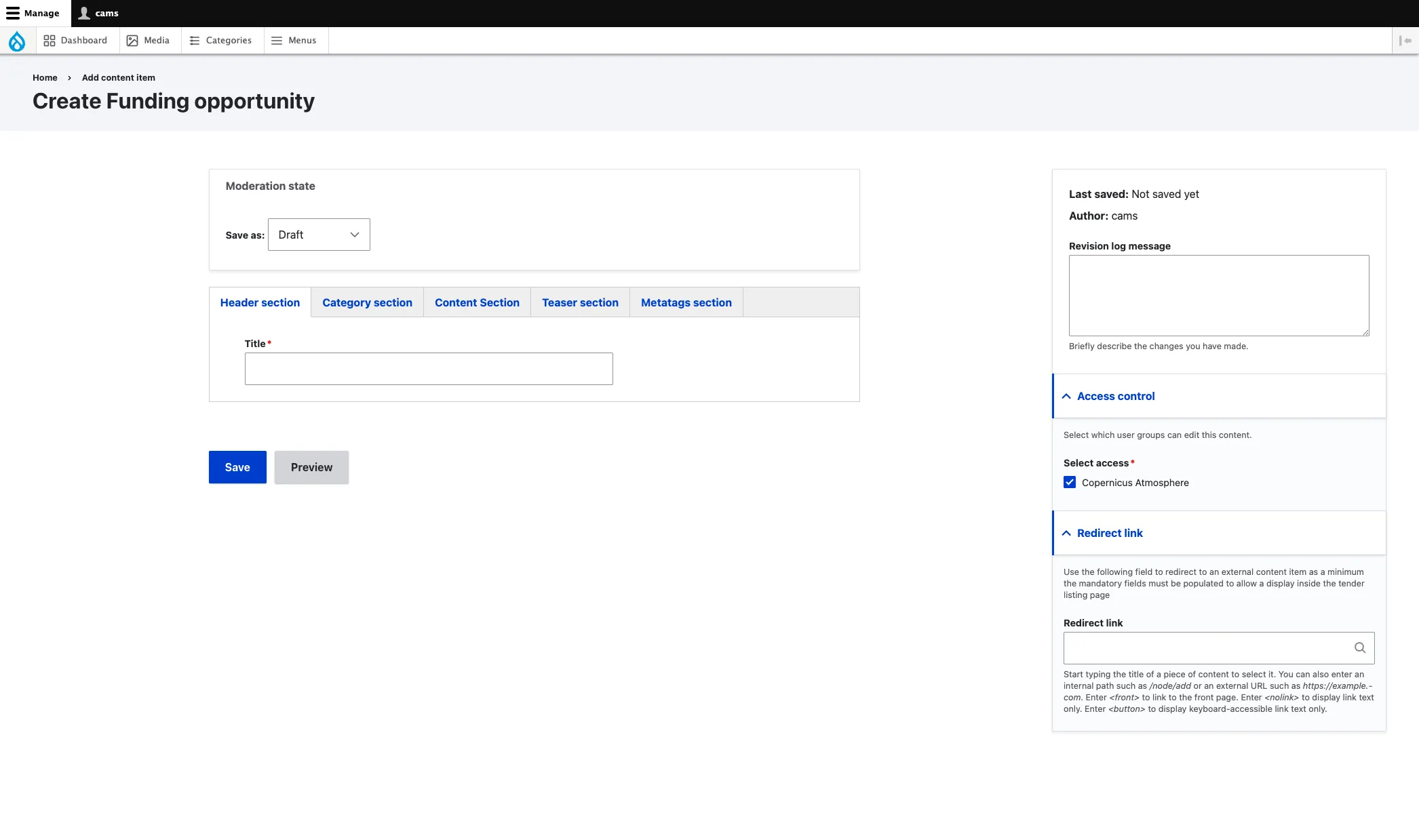
2. Header section
- Title (required) — the call headline. Drupal also uses it as the page’s internal name and as the basis for its URL. Keep it short and self-explanatory because visitors see it first in listings.
3. Category section
- Component (optional) — programme component the call belongs to. Drives the component-scoped funding listings.
4. Content Section — call details and body
The Content tab holds every structured field that describes the funding instrument, plus the call narrative and the outbound link. Render order on the page mirrors the form order below.
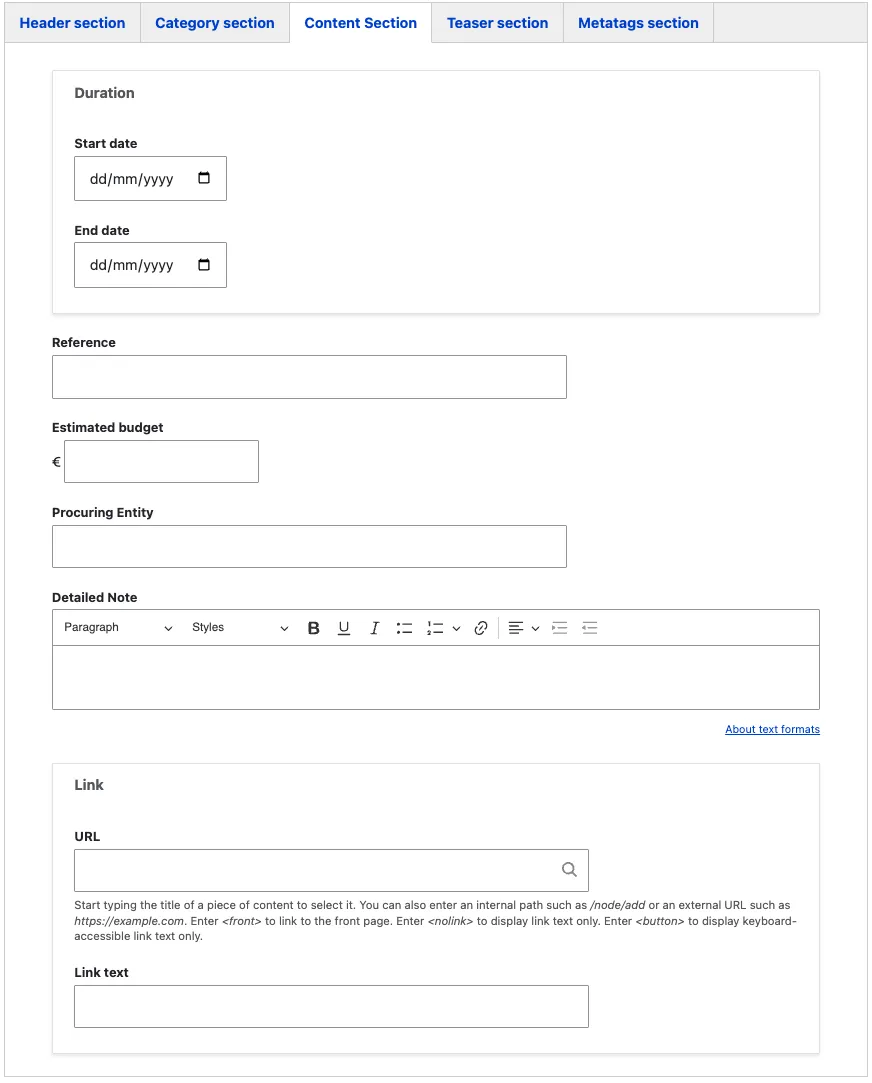
- Duration (optional, group) — drives the open / closed badge in listings and the dates shown on the page. Both sub-fields are optional individually, but a call with neither is invisible in date-sorted listings.
- Start date — when the call opens.
- End date — when the call closes.
- Reference (optional, string) — the procurement reference number (PIN, TED, F&T Portal reference). Critical — evaluators and finance teams cite this when escalating. Always surface it if known.
- Estimated budget (optional) — enter the value in euros using whole numbers without a currency symbol or thousands separator. For example, enter
1500000, not1,500,000or€1.5M. The page formats the value automatically. - Procuring Entity (optional) — enter the name of the DG or agency running the call, such as
DG DEFISorEUSPA. This is a free-text field, so use the same spelling across calls; listings treat different spellings as different organisations. - Detailed Note (rich text) — the call description: scope, eligibility, deliverables, evaluation criteria, any deadlines beyond the Duration window. This is the main editorial body — use headings, lists and links to make it scannable.
- Link (link group) — a supporting link that completes the narrative — background documentation, a related programme page, a methodology note, a partner site.
- URL (required when Link is used) — start typing the title of an internal page to pick it, or paste an external URL. The field also accepts the tokens
<front>,<nolink>,<button>documented under the field. - Link text (required when Link is used) — the visible label on the rendered button. Use a descriptive label (
Read the background brief,See the related programme page) — never leave it as the raw URL.
- URL (required when Link is used) — start typing the title of an internal page to pick it, or paste an external URL. The field also accepts the tokens
Note —
Linkis not the way to send visitors to the call on an external host. To make the funding opportunity page itself forward to the official call on another website (F&T Portal, TED, …), use the sidebar Redirect link (see sidebar section).
5. Teaser section
These fields drive how the page appears in listings and search results:
- Teaser title (required) — short title used on cards. Often the same as the page title; override only when the page title is too long for a card.
- Teaser (required, plain text) — the short description shown under the title in cards.
6. Metatags section
Override the SEO defaults if needed. See Metadata options.
7. Sidebar
The sidebar on the right-hand side of the edit form contains the following fields:
-
Revision log message — briefly describe what you changed in this edit. This is visible in the revision history and helps other editors understand what was updated and why.
-
Access control (required) — select the organisation that owns this content. Only editors belonging to the selected organisation can edit or publish the page. In the example above, “Copernicus Atmosphere” is selected, meaning only CAMS editors can modify this article.
-
Redirect link — use this when the call is hosted on an external site (F&T Portal, TED, …) and you want the funding opportunity page on eu-space to forward visitors directly there. Enter an external URL or start typing an internal page title. When set, visitors who open the page are taken straight to the linked destination. Leave empty when the call is documented in full on the platform. The mandatory teaser fields (title, text) must still be filled so the card displays correctly in listings.
Common mistakes
- Burying tender metadata in Detailed Note. Reference, Duration, Estimated budget and Procuring Entity are structured fields — listings and the open/closed badge rely on them. Don’t paste them into the rich-text body instead.
- Using Link to point at the official call. Link is for supporting material. To forward visitors to the call on F&T Portal, TED or another host, use the sidebar Redirect link.
- Typing the currency symbol in Estimated budget. The
€is rendered by the form — type the number only.
Tips
- For calls fully hosted on the EU F&T Portal, use the sidebar Redirect link — the EU Space page becomes a stub that redirects automatically while still appearing in internal search and the funding opportunities listing.
- Fill both Start date and End date — listings filter on these, and a missing End date drops the call out of the “open calls” view.
Funding Opportunity example
coming soon …