Iframe section
version 0.1 Read time 2m 07s
Purpose
An Iframe content section embeds a third-party tool inside an editorial page — an external dashboard, an embedded chart, or a third-party social media wall similar to walls.io. This structured component is the approved way to add interactive external content because scripts and raw <iframe> code cannot be pasted into rich-text fields.
When to use
If you need text next to a smaller iframe, use Structured content with media and select an iframe variant. Use the Iframe content section when the embedded content should take the full content width.
Do not use the standard Iframe content section for CAMS or AeroVal visualisations. CAMS uses the dedicated CAMS viewer, and AeroVal has its own AeroVal viewer.
Steps
1. Add the content block
In Content items, click Add Iframe content section.
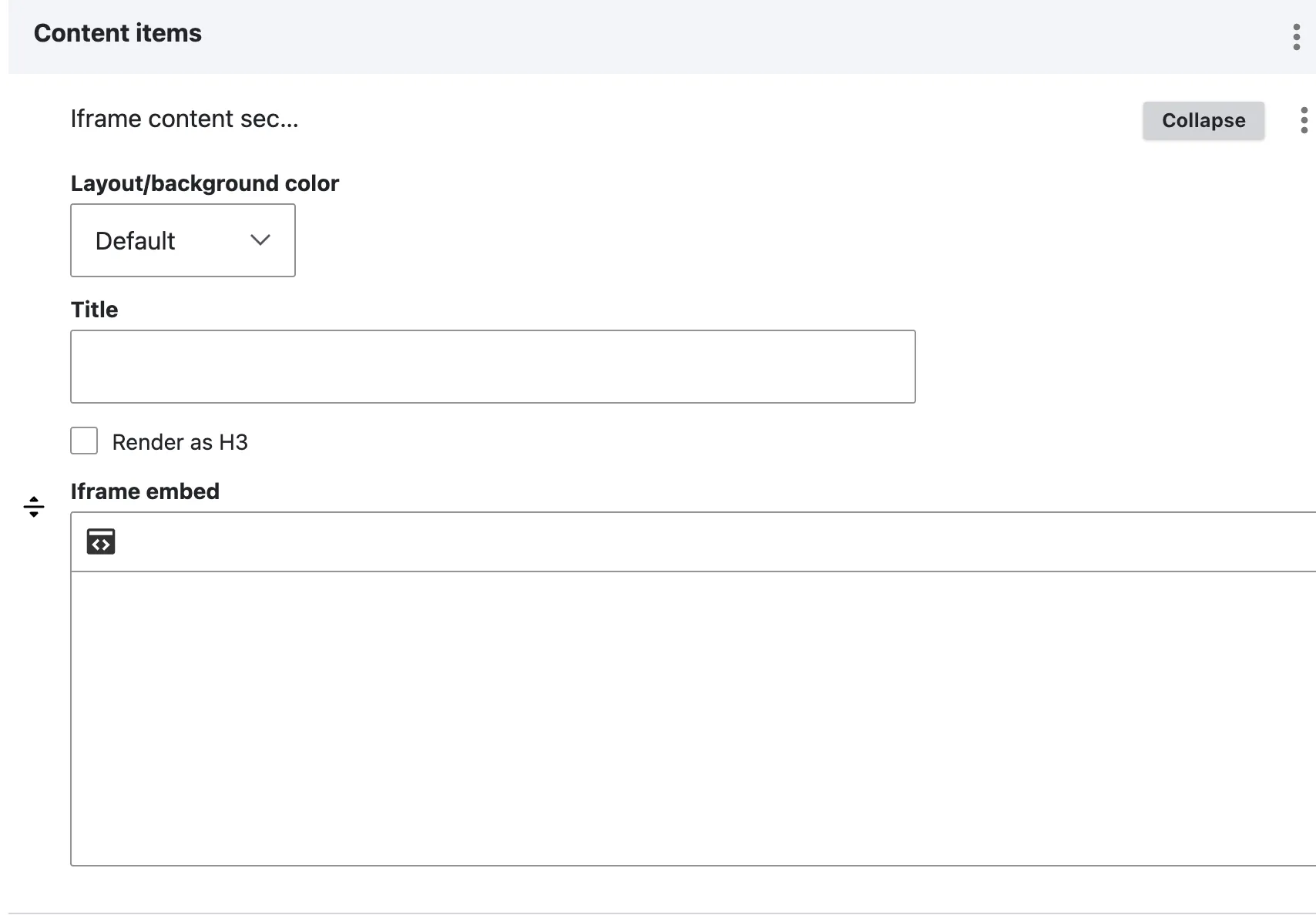
A sub-form opens with four fields:
- Title (optional) — heading above the iframe.
- Render as H3 (optional) — render the title as H3 instead of H2.
- Iframe embed — opens the structured Add an iframe form described below. Enter the URL and the relevant iframe settings in that form, then click the green checkmark to add it. Do not paste raw
<iframe>HTML. - Layout / background colour (optional) — Default or Grey.
2. Add an iframe
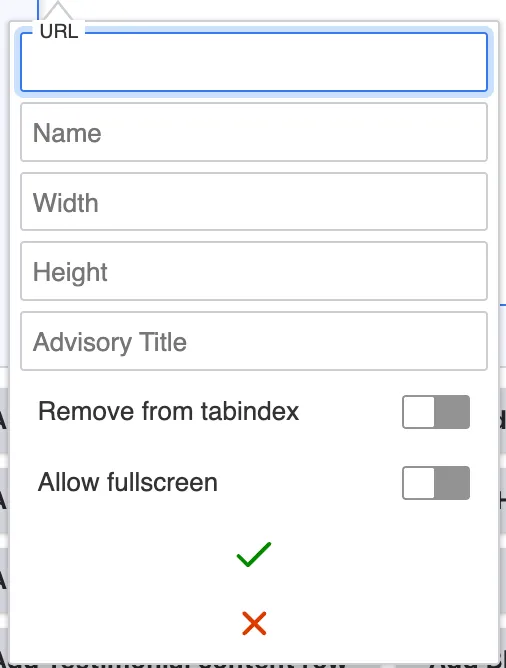
- URL — add the address of the element you want to embed.
- Name — give the iframe a clear, descriptive name. This is exposed to screen readers to indicate what the iframe contains.
- Width — we recommend the full body width, 1000px.
- Height — 600px works well for a 1000px width, but you can publish first and adjust afterwards.
- Advisory Title — a clear, descriptive title for the iframe. Like the name, this helps screen readers convey what the iframe is about.
- Remove from tabindex — toggle on to exclude the iframe from keyboard tab navigation.
- Allow fullscreen — toggle on to let the embedded content expand to fullscreen.
- Click the green checkmark to save, or the red cross to cancel.
3. Save
Click Save on the page-editing form. Preview the page to confirm that the iframe appears correctly.
Field explanations
| Field | What editors should enter or select |
|---|---|
| Title | An optional heading above the embedded content. |
| Render as H3 | Select when the section belongs under an existing H2. |
| Iframe embed | Opens the structured iframe form. Enter settings there; do not paste raw <iframe> HTML. |
| URL | The secure https address of the content to embed. Its host must be approved by the site. |
| Name | A short descriptive identifier for the embed. |
| Width | The displayed width. The recommended full body width is 1000px. |
| Height | The displayed height. Start with 600px and adjust after previewing. |
| Advisory Title | An accessible description that tells screen-reader users what the embed contains. |
| Remove from tabindex | Excludes the embed from keyboard tab navigation when it should not receive focus. |
| Allow fullscreen | Allows visitors to expand suitable content, such as a map or video. |
| Layout / background colour | Default uses white; Grey adds a light-grey section background. |
Common mistakes
- Embed renders blank. The external host may not be on the site’s approved list. Ask a site administrator to check the host rather than trying to paste alternative embed code.
- No height. Iframes do not automatically size themselves to their content. Set a suitable value in the Height field and adjust it after previewing.
Tips
- Always set a meaningful height — 600 to 800 pixels is the typical range for dashboards. Charts often work at 400-500.
- When the site blocks an embed, ask an administrator to review and approve that specific host. The site’s general security controls should not be disabled.
Example
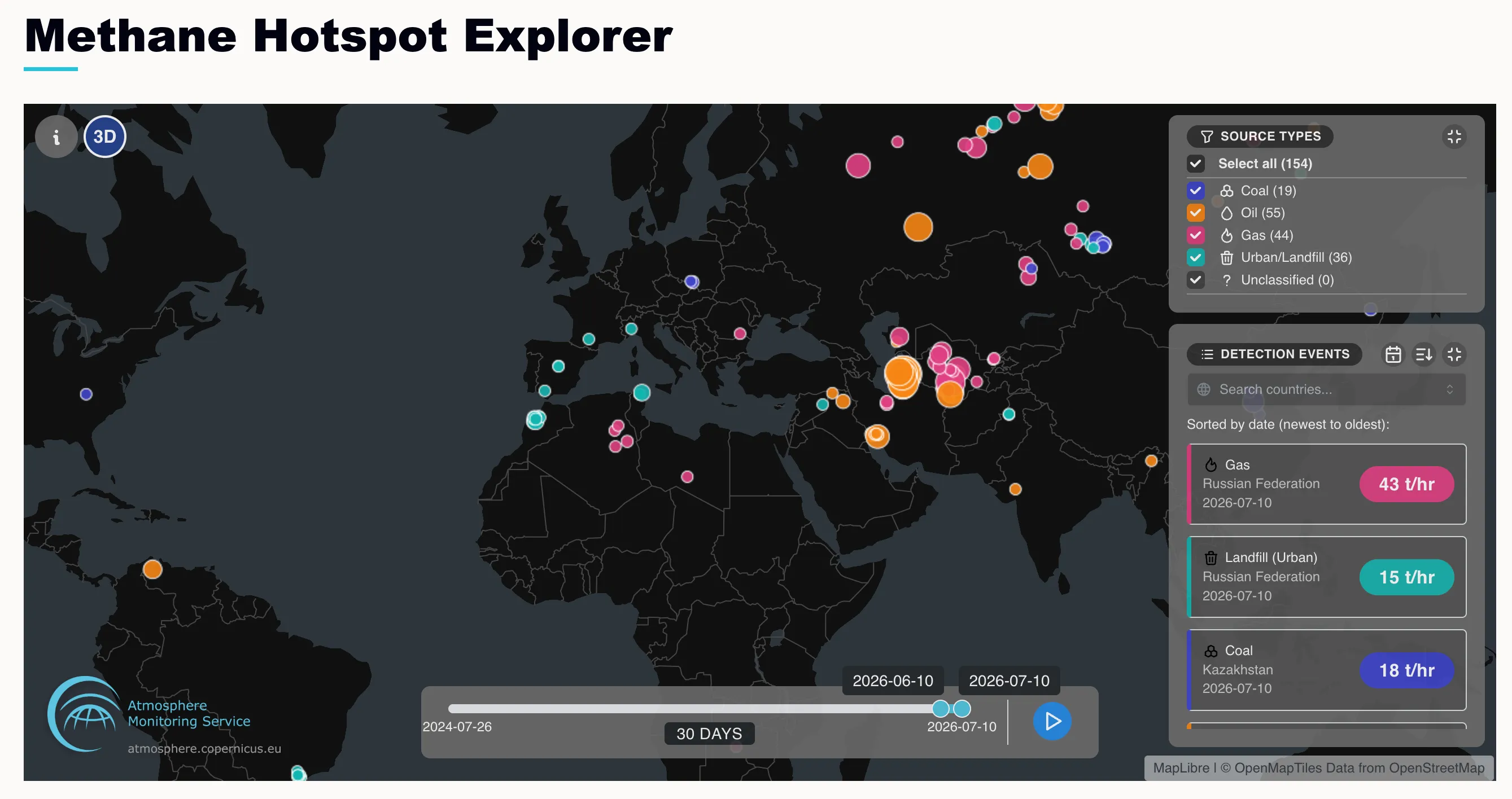
The following example shows an external interactive element embedded across the content width.