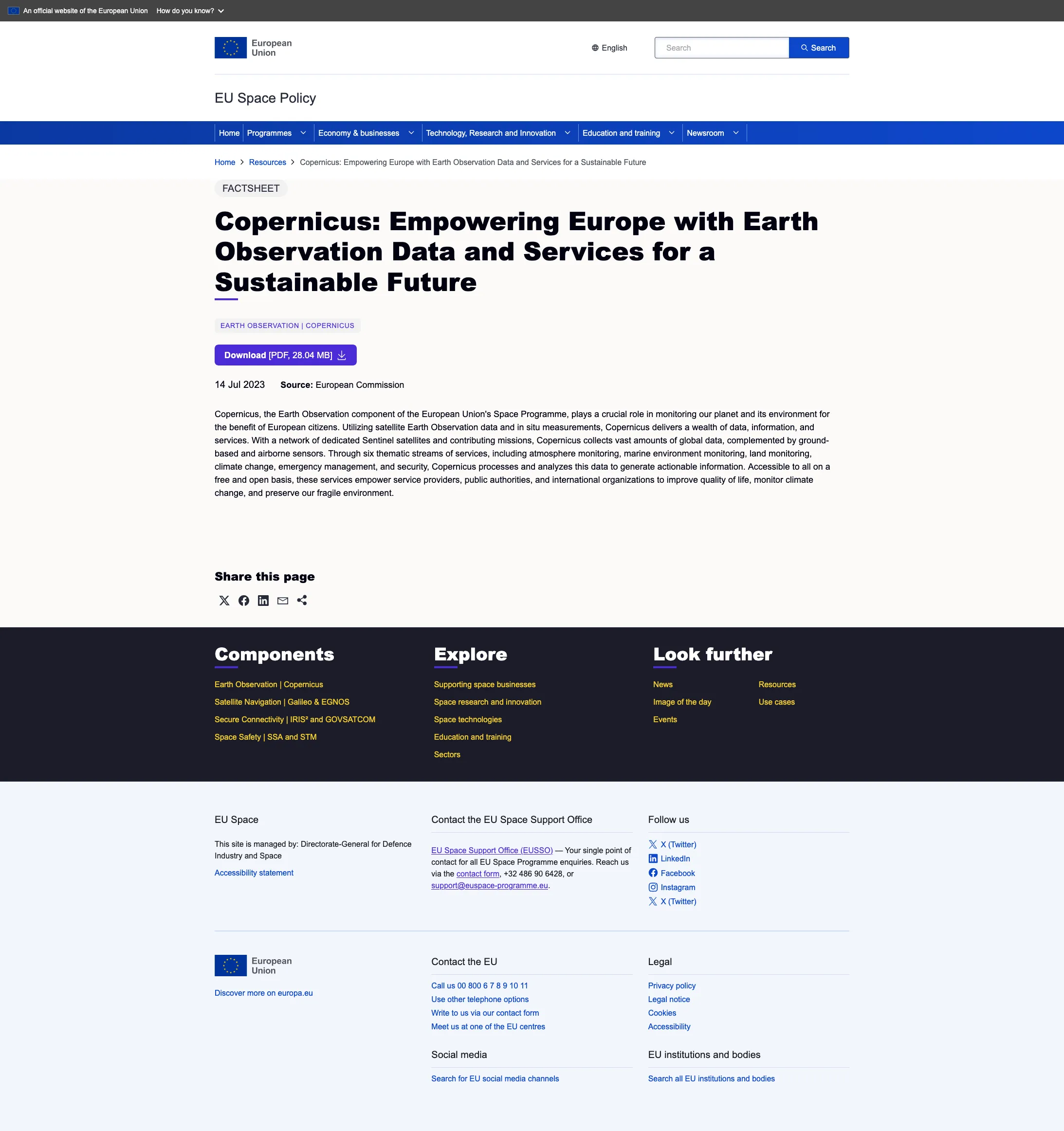
Resource content type
version 0.1 Read time 2m 45s
Use the Resource content type for a downloadable or playable item, such as a PDF, dataset, presentation, factsheet, infographic, video, or podcast. The page adds the descriptive information visitors need before opening or downloading the item. Resources appear in the Resources listing, in search, and as related items on other pages through the Reference resource field.
Unlike News or Structured templates, Resources do not use a stack of reusable content blocks. The body contains a rich-text description and one media item selected from the media library.
Step-by-step: create a resource
1. Open the add form
Dashboard → + Add content → Resource.
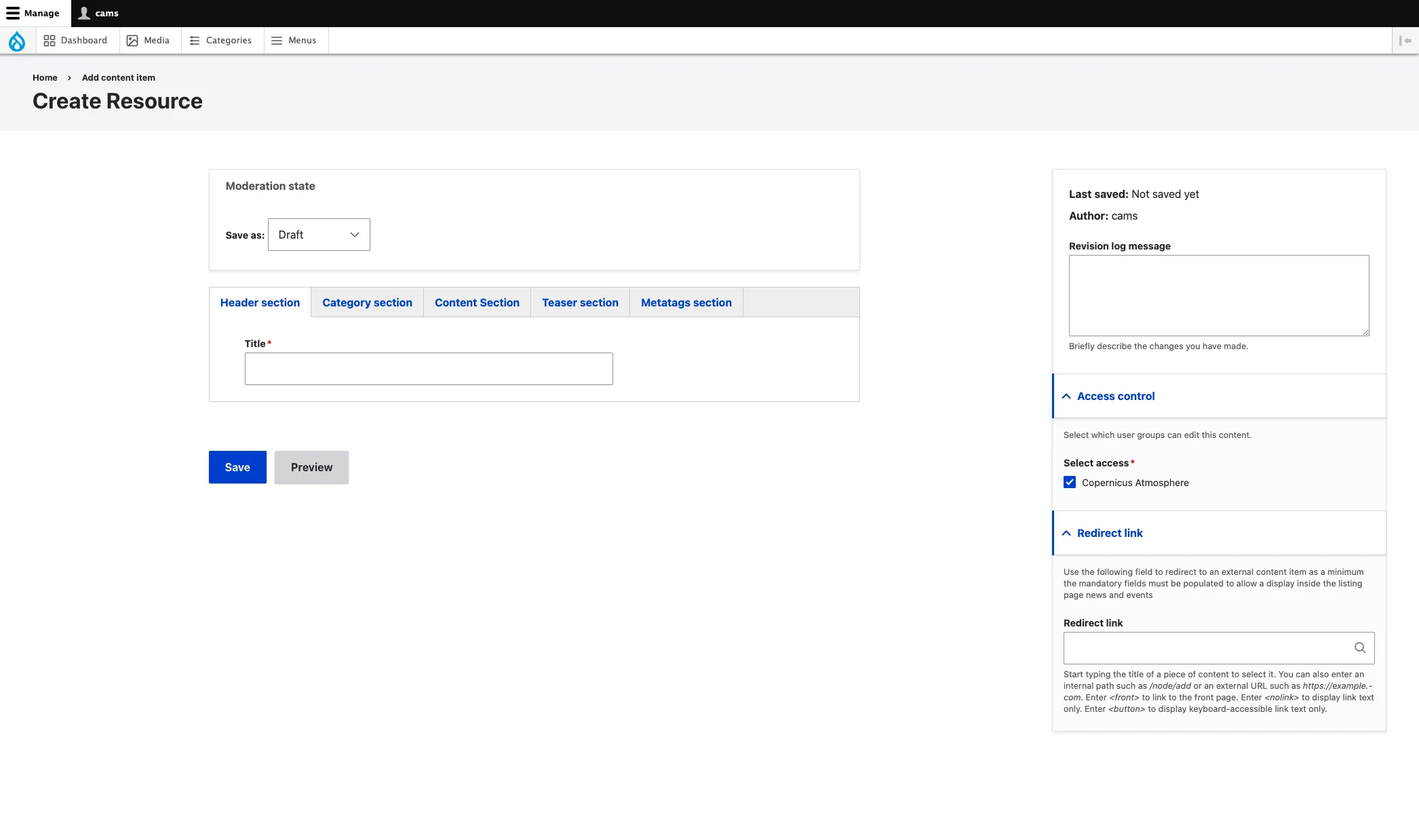
2. Header section
- Title (required) — the resource headline. Drupal also uses it as the page’s internal name and as the basis for its URL.
3. Category section — taxonomies
- Component (required) — programme component.
- Service (optional) — pick the EU Space service this concerns. Drives the service-accent colour and the service-scoped listings.
- Sector (optional).
- Resource type (required) — Brochure, Data Portal, Document, Factsheet, Flyer, Handbook, …
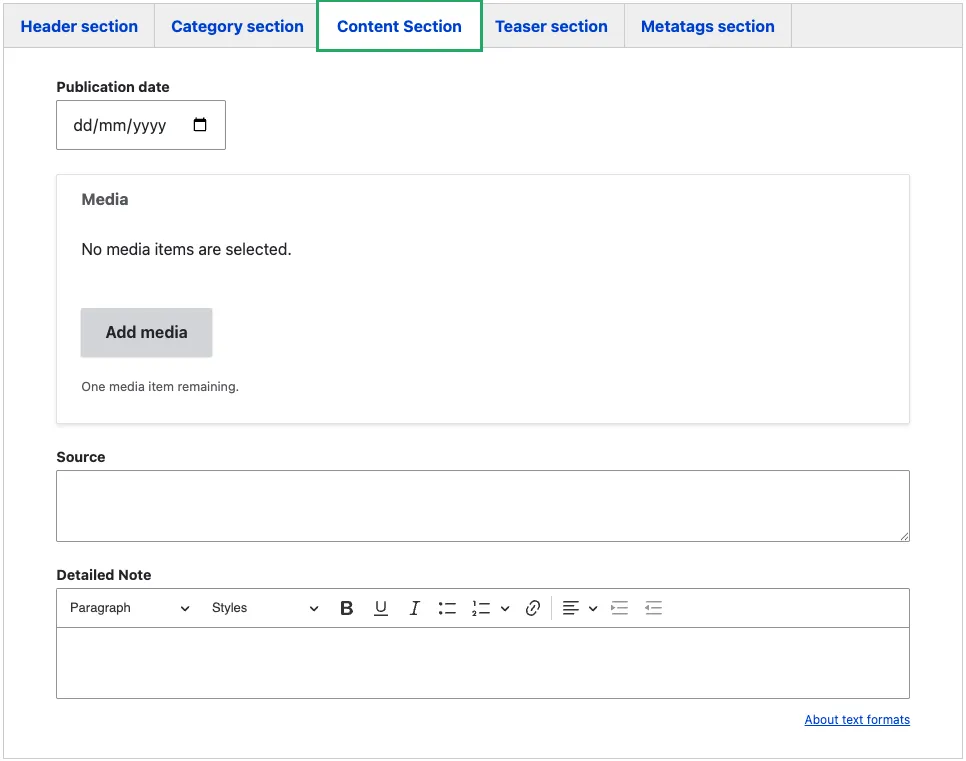
4. Content Section — the body
- Detailed Note (rich text) — the resource description shown on the resource page. Two to three paragraphs typically.
- Media — the actual file, image, video, or podcast. Open the media library and select an existing item or upload a new one. Accepted media types are File, Image, AV portal video, Remote video, and Podcast.
- Source — the organisation, publication, or author responsible for the resource.
5. Teaser section
These fields drive how the page appears in listings and search results:
- Teaser title (required) — short title used on cards. Often the same as the page title; override only when the page title is too long for a card.
- Teaser (required, plain text) — the short description shown under the title in cards.
6. Metatags section
Override the SEO defaults if needed. See Metadata options.
7. Sidebar
The sidebar on the right-hand side of the edit form contains the following fields:
-
Revision log message — briefly describe what you changed in this edit. This is visible in the revision history and helps other editors understand what was updated and why.
-
Access control (required) — select the organisation that owns this content. Only editors belonging to the selected organisation can edit or publish the page. In the example above, “Copernicus Atmosphere” is selected, meaning only CAMS editors can modify this article.
-
Redirect link (optional) — use this when the resource is hosted on another website but should still be discoverable through EU Space search and Reference resource fields. If both Media and Redirect link are completed, the Redirect link takes priority and sends visitors to the linked page.
8. Save and publish
Click Save. The page is saved as Draft. Use the Moderation state dropdown at the top of the form to move it through Needs Review → Published when ready (see Content workflow).
Common mistakes
- Trying to attach the file as a teaser image. Resources do not have a teaser image. The listing card uses the Resource type icon or, for visual media, a thumbnail generated from the selected media item.
- Leaving Media empty without a Redirect link. The Resource has nothing for visitors to download — the page renders as just the description.
- Wrong media type. File, Image, AV video, Remote video, and Podcast are accepted, but each appears differently on listing cards. Make sure the selected media matches the Resource type. For example, do not classify an AV video as a Document.
- Missing Source. Always credit the originating organisation — the Source field is what evaluators and partners cite.
Tips
- For image and video resources, complete both the media item’s credit and the Resource page’s Source field when appropriate. Source identifies the organisation or author; the media credit records the rights information. Both appear on the page.
- For external resources hosted by partners, use Redirect link rather than trying to fake a download. Visitors still find the resource through internal search.
- For long downloads (datasets, large PDFs), put a short summary in Detailed Note so visitors know what they’re downloading before clicking.
Resource example