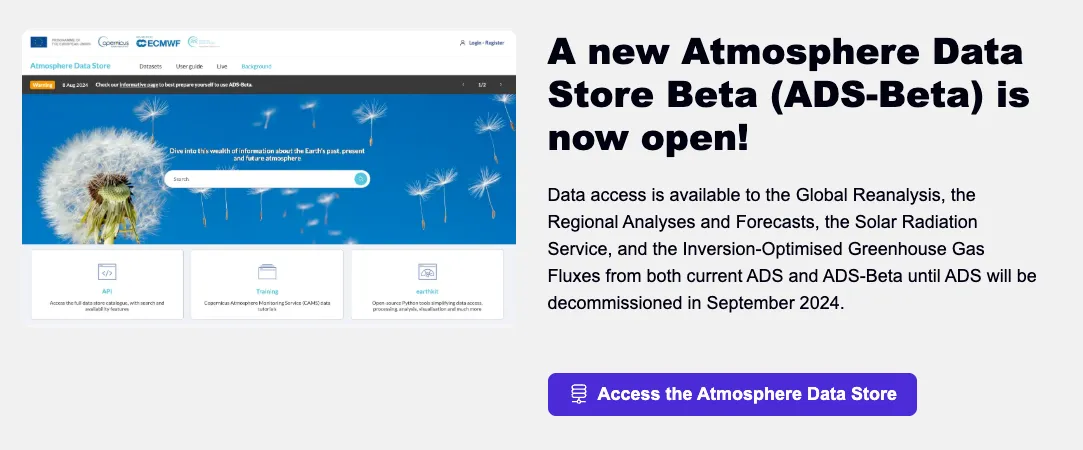
Structured content with media
version 0.1 Read time 1m 49s
Purpose
A Structured Content Section with Media pairs an editorial text block with either a media element (image, video, podcast, remote video) or an embedded iframe — optionally with a Call to Action button. Use it whenever you want text alongside a visual, rather than text alone.
This content block has eight variants. The selected variant controls the position of the text, the type of visual shown (media or iframe), and whether a call-to-action button is included. Choose the variant first because it determines which fields appear in the form.
When to use
Use this block when a visual and its explanation need to be understood together, such as an image with supporting text, a video introduction, or a compact embedded chart with context. Use a Structured content section for text alone, a Media content section for media without adjacent text, or an Iframe section for a full-width embed.
Steps
1. Add the content block
On the page-editing form, open the Content Section tab and select Add Structured Content Section with Media.
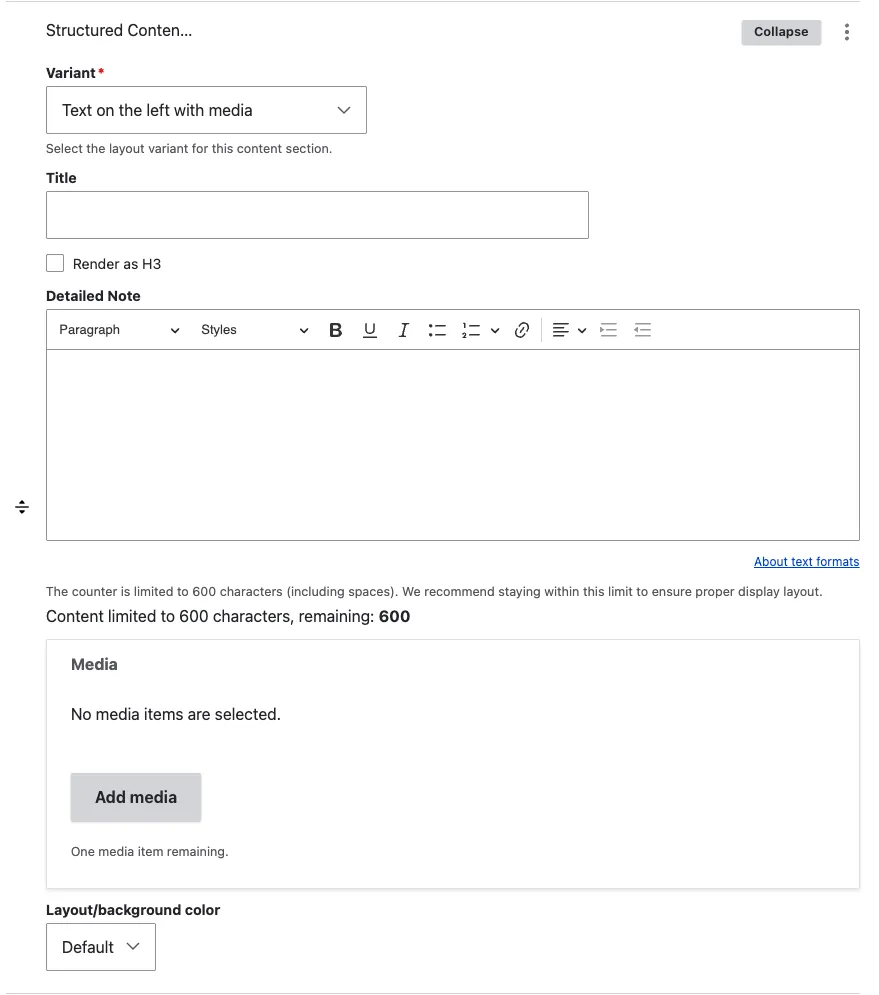
A sub-form opens. The first field is Variant, currently - Select a value -.
2. Pick the variant
The Variant dropdown offers eight options:
| Value | What it gives you |
|---|---|
| Text on the left with media | Text panel left, media right. |
| Text on the right with media | Text panel right, media left. |
| Text on the left, with CTA and media | Text + CTA panel left, media right. |
| Text on the right, with CTA and media | Text + CTA panel right, media left. |
| Text on the left with iframe | Text left, iframe embed right. |
| Text on the right with iframe | Text right, iframe embed left. |
| Text on the left, with CTA and iframe | Text + CTA left, iframe right. |
| Text on the right, with CTA and iframe | Text + CTA right, iframe left. |
Picking a variant triggers conditional fields — the form re-renders to show the fields relevant to your choice.
3. Fill the text fields
- Title (optional) — section title. Renders as H2 by default.
- Render as H3 (optional) — tick when nested under another heading.
- Detailed Note (optional) — rich-text body. Max 600 characters (counter visible under the editor). Toolbar: Paragraph/Heading dropdown, Bold, Underline, Italic, Lists, Link, Text alignment, Indent.
4. Fill the visual
If the variant uses media:
- Single media — opens the media library. Select or upload one Image, AV portal video, Remote video, or Podcast item.
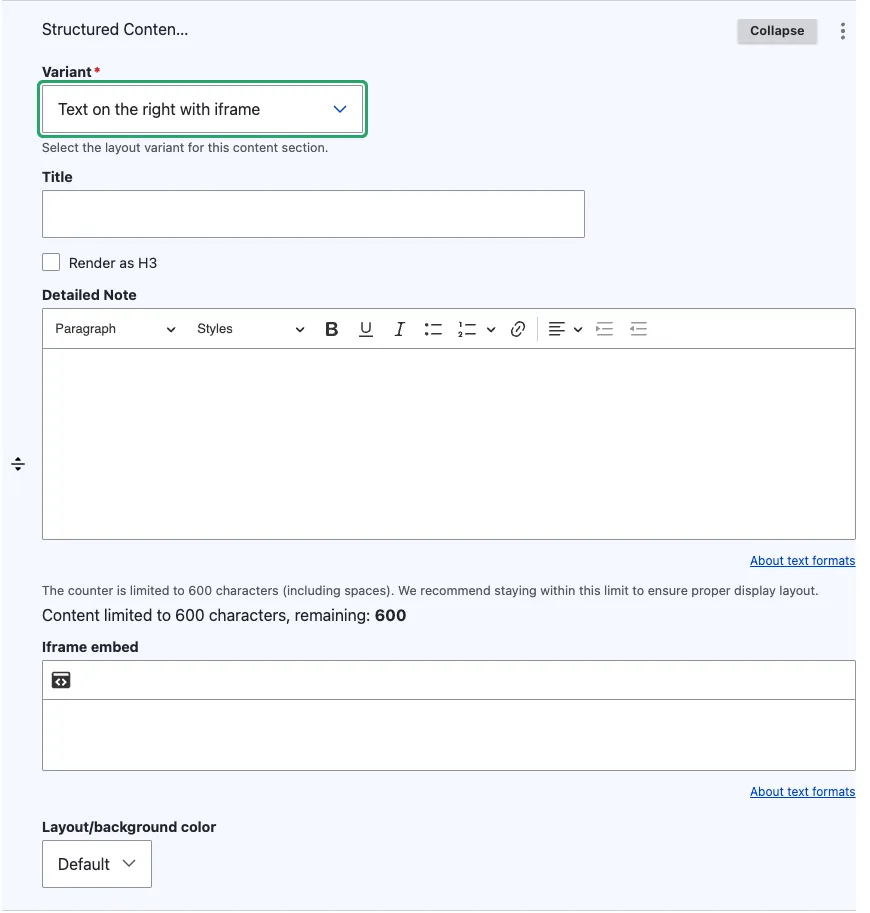
If the variant uses iframe:
The form opens a structured iframe builder — you do not paste raw HTML. Fill the fields and confirm with the green ✓ (red ✗ to cancel):
- URL (required) — the embed URL (https). The host must be allow-listed in the site CSP — if the embed does not render after save, ask an administrator.
- Name (optional) — internal identifier for the embed. Editorial-only, not shown to visitors.
- Width (optional) — accepts a CSS value (e.g.
100%,600px). Leave blank to inherit the column width. - Height (optional) — accepts a CSS value (e.g.
400px). Always set this — iframes have no intrinsic height and collapse to 0 otherwise. - Advisory Title (optional but recommended) — the iframe’s
titleattribute. Used by screen readers to describe the embed (e.g. “CAMS aerosol viewer”). Fill it for accessibility. - Remove from tabindex (toggle) — skip the iframe in keyboard tab navigation. Tick when the embed is decorative or its own internal focus order would confuse keyboard users.
- Allow fullscreen (toggle) — adds the
allowfullscreenattribute so visitors can expand the embed (videos, maps, viewers). Leave off for static embeds.
5. Add a CTA (if the variant includes one)
If you picked a *_cta_* variant, the form offers Add Call to Action element. Click it and fill the CTA sub-form (label, link, button type, size, optional icon — see Call to action).
6. Set the layout / background
- Layout / background colour (optional) — Default (white) or Grey. Use Grey to make the section stand out from white sections above and below.
7. Save
Click Save on the page-editing form.
Field explanations
| Field | What editors should enter or select |
|---|---|
| Variant | Selects text position, visual type, and whether the block includes a CTA. Choose this first. |
| Title | An optional section heading, displayed as H2 by default. |
| Render as H3 | Select when the section belongs under an existing H2. |
| Detailed Note | The rich-text explanation, with a recommended maximum of 600 characters. |
| Single media | One image, AV portal video, remote video, or podcast from the media library. Shown only by media variants. |
| Iframe fields | The URL, dimensions, accessible title, keyboard-navigation setting, and fullscreen setting. Shown only by iframe variants. |
| Call to action element | One optional button, available only in CTA variants. |
| Layout / background colour | Default uses white; Grey adds a light-grey section background. |
Common mistakes
- Switching variants after completing the fields. Changing from a media variant to an iframe variant hides the media field you completed. The information is retained, but it does not appear on the page unless you switch back. Choose the variant first.
- Long Detailed Note. The counter caps at 600 characters. Plan the body around that limit; longer text belongs in a Structured Content Section.
- No alternative text on an informative image. Add suitable alternative text to the media-library item before selecting it for the section.
Tips
- Alternate the Text on the left with media and Text on the right with media variants to make a long page easier to scan.
- The CTA variants are useful when the section’s text directly invites action (“Explore the dataset → [button]”). For decorative sections, skip the CTA.
- The iframe variants are appropriate for tools that have a natural side-by-side framing (a small embedded chart next to its caption). For a full-width tool embed, use Iframe section.
Example
This example places explanatory text beside a related media item.