Structured content section
version 0.1 Read time 1m 49s
Purpose
A Structured Content Section is the standard content block for plain text. It combines an optional section title with a rich-text body. Use it for a labelled section that does not need an accompanying image, video, or iframe.
If you need text next to media or an iframe, use Structured content with media instead.
When to use
Use this block for introductions, explanations, policy text, summaries, or any other section whose main content is text. Choose another block when the section needs media, a list of repeating items, a download, or a visually emphasised message.
Steps
1. Add the content block
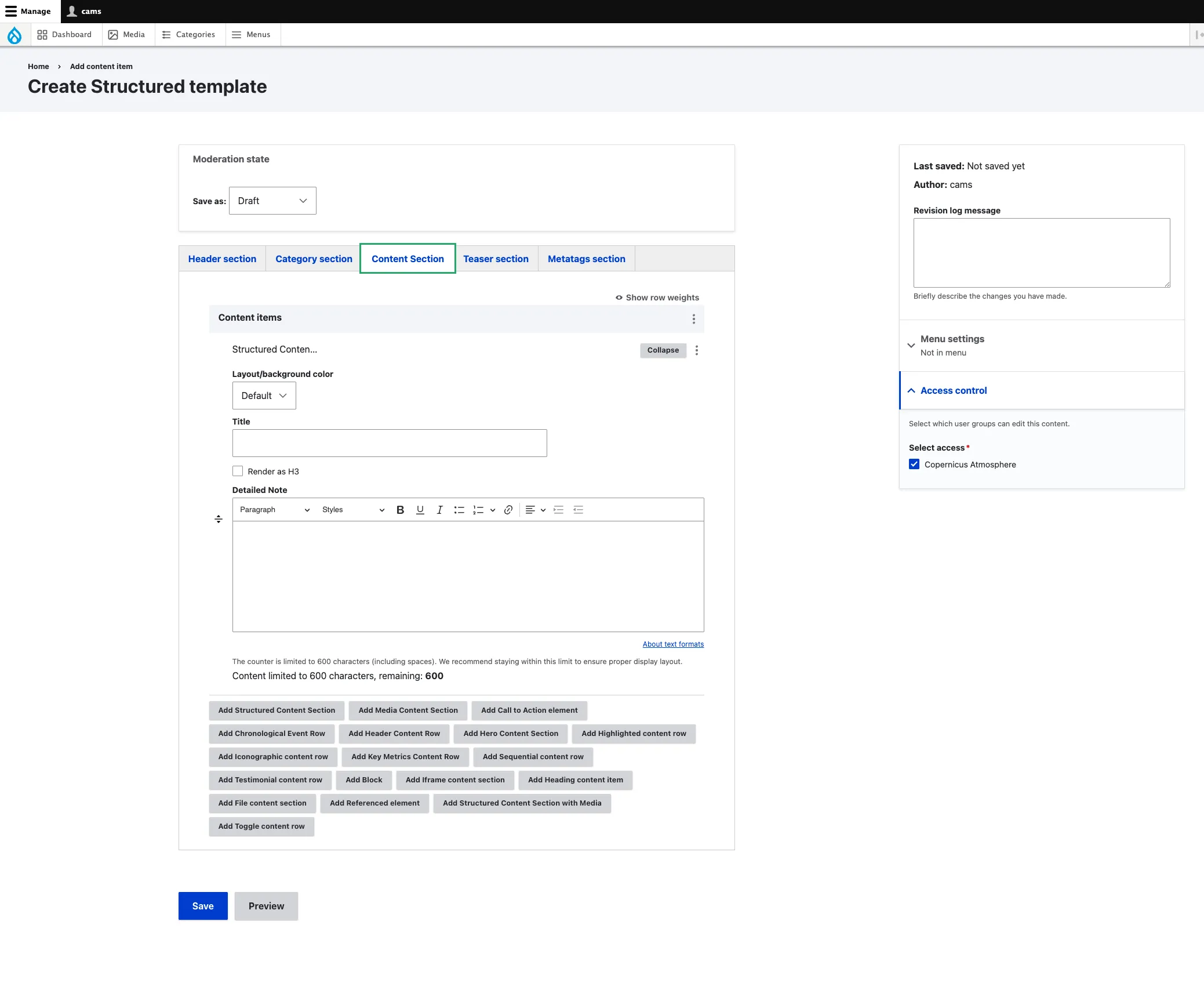
In Content items, click Add Structured Content Section.
A sub-form opens with four fields:
- Title (optional) — the section heading. Renders as H2 by default. Leave empty for a body-only section.
- Render as H3 (optional) — tick when this section is nested under another H2 (a parent Heading content item, or another section above). Keeps the heading hierarchy correct.
- Detailed Note (optional) — the rich-text body. Max 600 characters (counter visible under the editor). Full toolbar: Paragraph/Heading dropdown, Styles, Bold, Underline, Italic, Lists, Link, Text alignment, Indent.
- Layout / background colour (optional) — Default (white) or Grey. Use Grey to make the section stand out from white sections above and below.
2. Save
Click Save on the page-editing form.
Field explanations
| Field | What editors should enter or select |
|---|---|
| Title | An optional section heading, displayed as H2 by default. |
| Render as H3 | Select when the section belongs under an existing H2. |
| Detailed Note | The rich-text body, with a recommended maximum of 600 characters. |
| Layout / background colour | Default uses white; Grey adds a light-grey section background. |
Common mistakes
- Exceeding 600 characters. The counter is capped at 600 characters (including spaces), although the CMS will save content that exceeds this limit. It is recommended to split longer text into multiple Structured Content sections, which also helps keep the page more readable and easier to scan.
- Using H1 inside the body. The heading-level dropdown offers only H2 and H3. The page already has an H1, supplied by the Header Content Row title or the main page Title field, so do not add another H1 in the body.
- Stacking too many. A landing page made of six Structured Content Sections back-to-back reads as a wall of text. Alternate with Media Content Section, Structured Content with Media, Key Metrics or Highlighted Content to vary the rhythm.
Tips
- Use the Title to give the section a scannable label — most visitors skim the page reading only headings. A good title earns the read.
- Toggle Layout = Grey every second or third section to give a long page visual rhythm. Do not Grey every section.
- For a labelled section break with no body, use Heading content item instead — it’s lighter.
Example
The following example shows a titled text section with its body content and standard spacing.