Creating content
version 0.1 | Read time 1m 49s
To create content you must be signed in with an Content author role for the organisation you publish on behalf of.
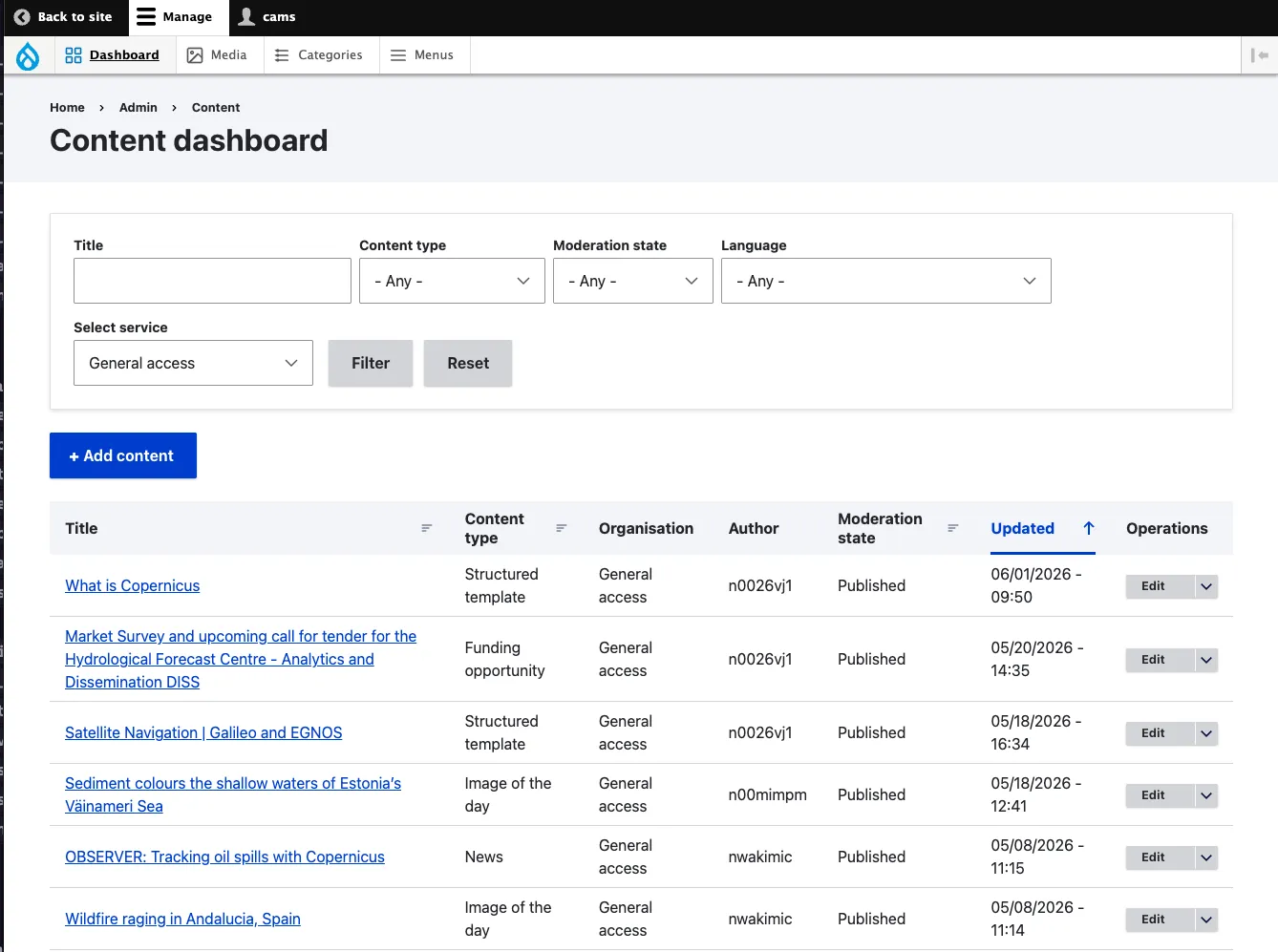
- In the toolbar, go to Dashboard (
/admin/content/dashboard). - Click + Add content in the top-left of the listing.
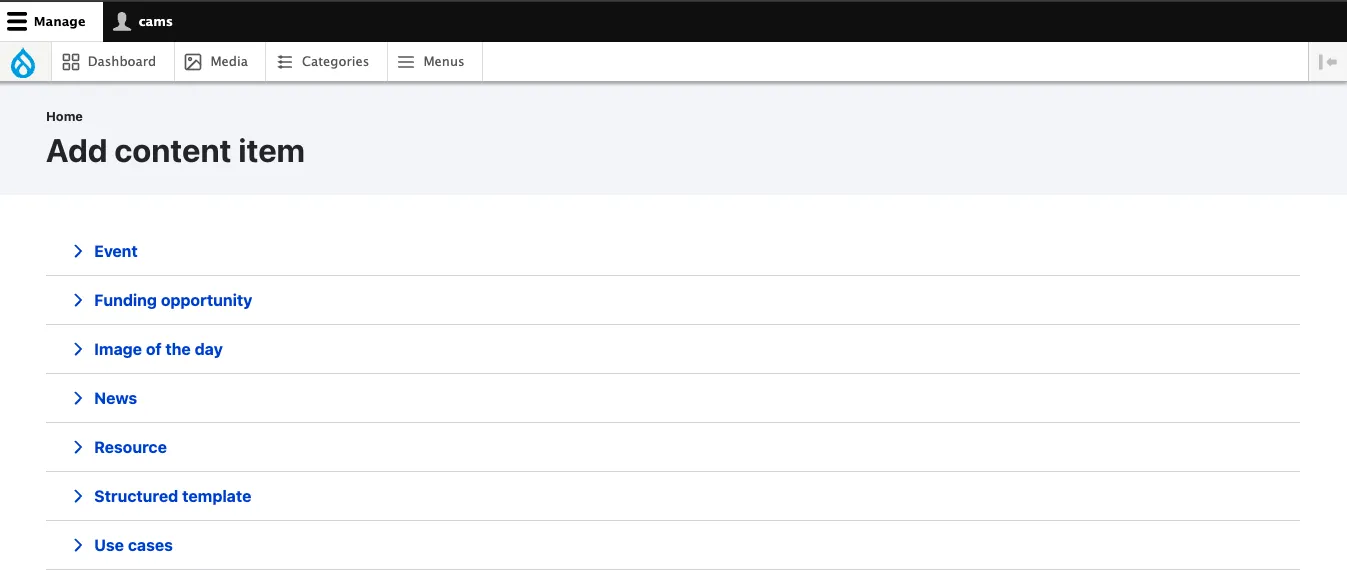
- Pick the content type that matches your editorial intent. The selector is grouped by purpose — see Available content types for a full reference.
Content editing interface
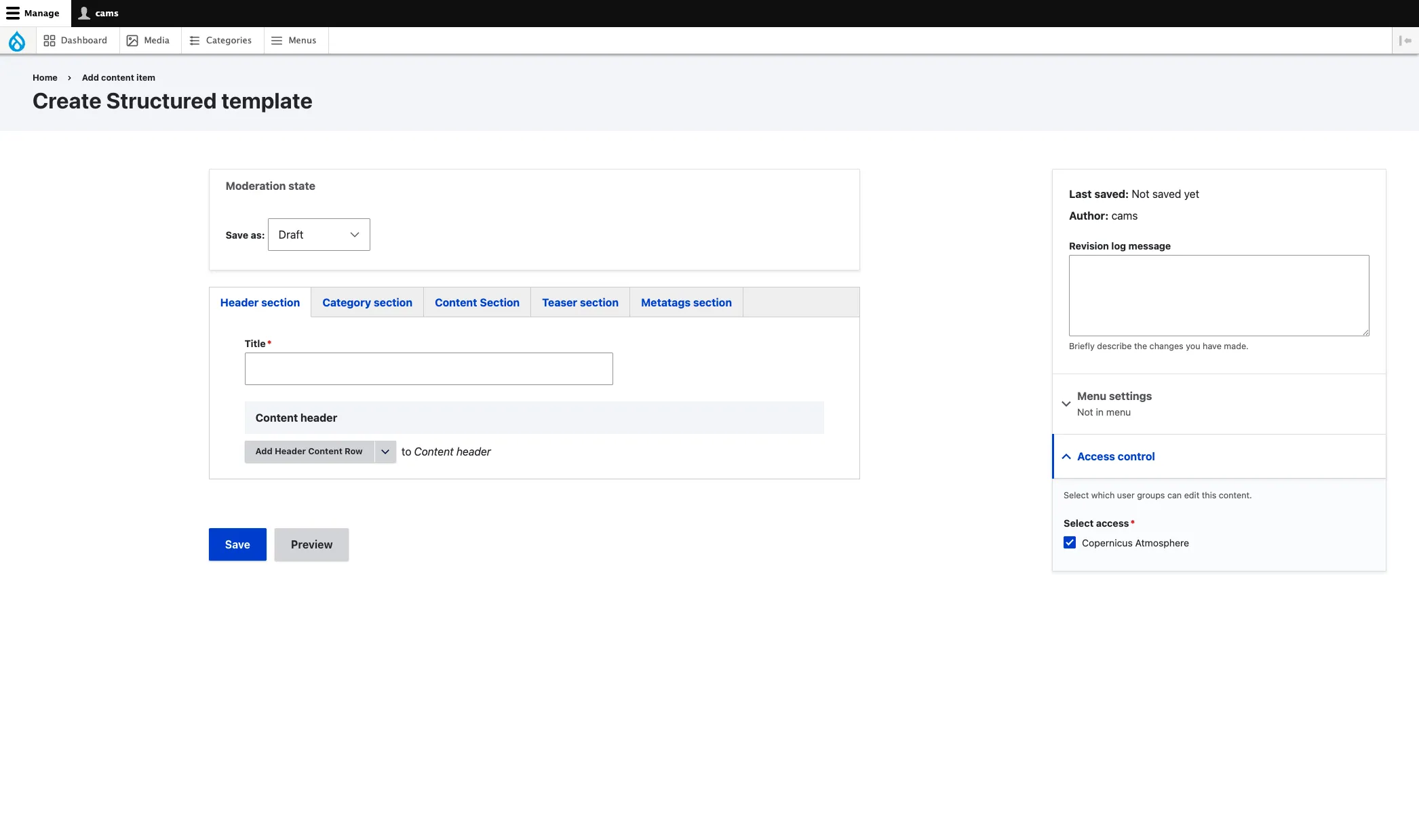
EU Space uses tabbed edit forms to keep authoring focused. Every content type has a main content column on the left and a sidebar column on the right.
- Header section — title field. On Structured Template and Use Cases, this also includes the Content header field for a header content block.
- Category section — taxonomy fields only (sector, component, etc.).
- Content section — the editorial body.
- Teaser section — listing card fields: teaser title, teaser image, teaser text.
- Metatags section — SEO / Open Graph overrides (see [[metadata-options]]).
Event, Funding opportunity and Listing Page deviate from this baseline — refer to their respective content type pages for details.
Sidebar column
Available on every content type:
- Access control — the organisation term (required). Determines which editorial team owns the content.
- Moderation state — workflow control (draft, review, published).
Available on selected content types:
- Redirect link — Event, News, Resource, Funding Opportunity, Use Cases.
- Highlight in menu — News only. Drives the mega-menu spotlight slots.
- Node settings > Navigation — Structured Template only. Controls main-menu inclusion and the menu label.
Field rules
- Fields with a red asterisk (
*) are mandatory. The form will refuse to save until they are filled. - Help text under a field tells you the expected format, the maximum length or the rendering implication.
- Many content block types use conditional fields — fields appear or disappear based on an earlier choice. For example, the Variant selected in a Structured Content with Media block determines which other fields are shown.
Saving
- Click Save to save the page.
- If all mandatory fields are filled, the page is saved as Draft.
- You are redirected to the page preview. From there you can:
- Click Edit to continue working on the same revision.
- Use the Moderation selector in the footer to move the page to Needs Review, Published, or Unpublished.