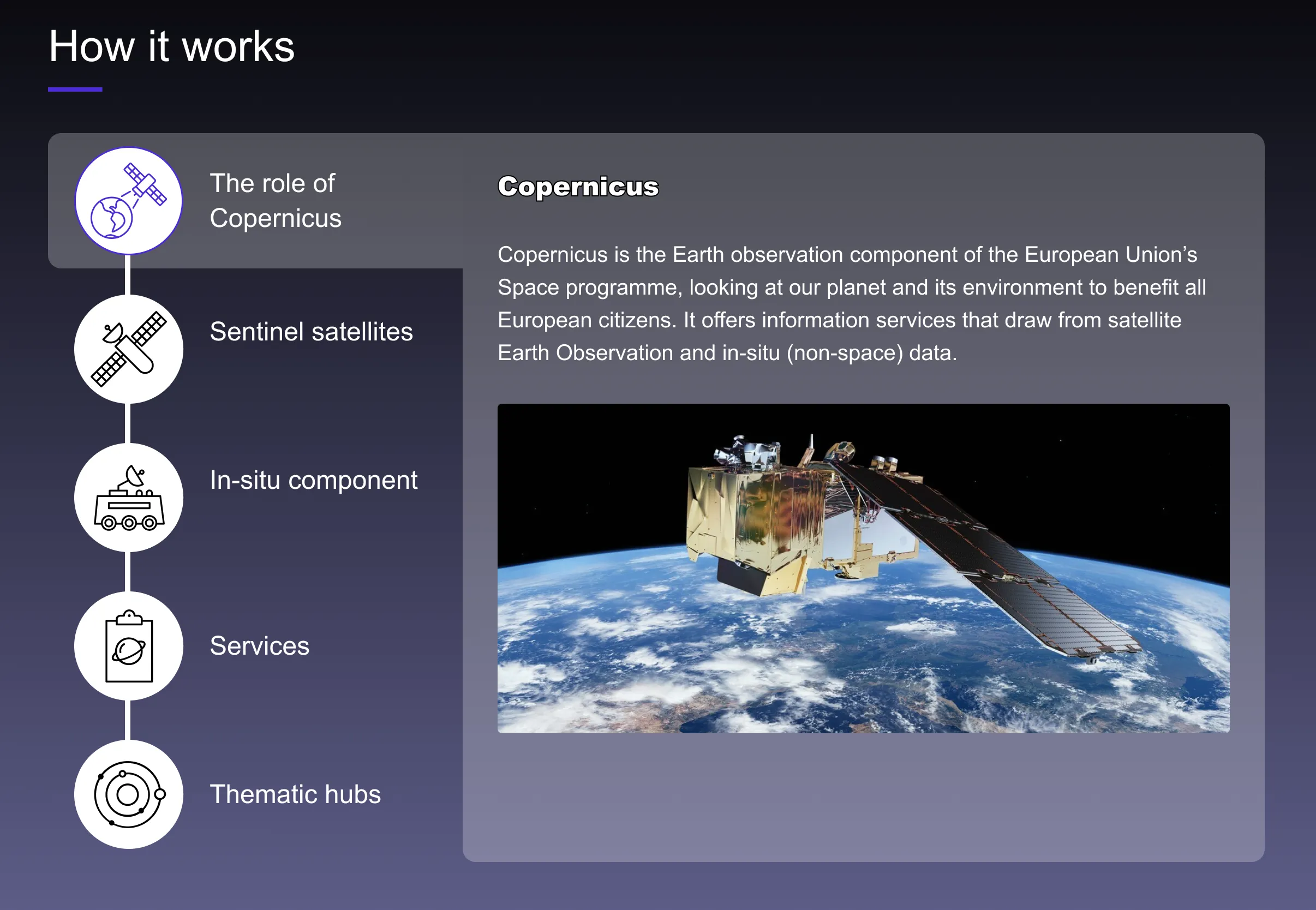
Sequential content row
version 0.1 Read time 3m 02s
Purpose
A Sequential content row explains a process step-by-step. The row is vertical: each step has an icon (or media) on one side and a text panel on the other. Use it for “How it works”, methodology breakdowns, deployment processes.
Each step is a Sequential content item nested inside the row. The row creates the “Add Sequential content item” button for you.
When to use
Use it for an ordered process or for several closely related stages that visitors can explore one at a time. Three to five items work best. Use a Chronological content row when real dates define the order, or a Structured content section when there is only one item.
Steps
1. Add the row
In Content items, click Add Sequential content row.
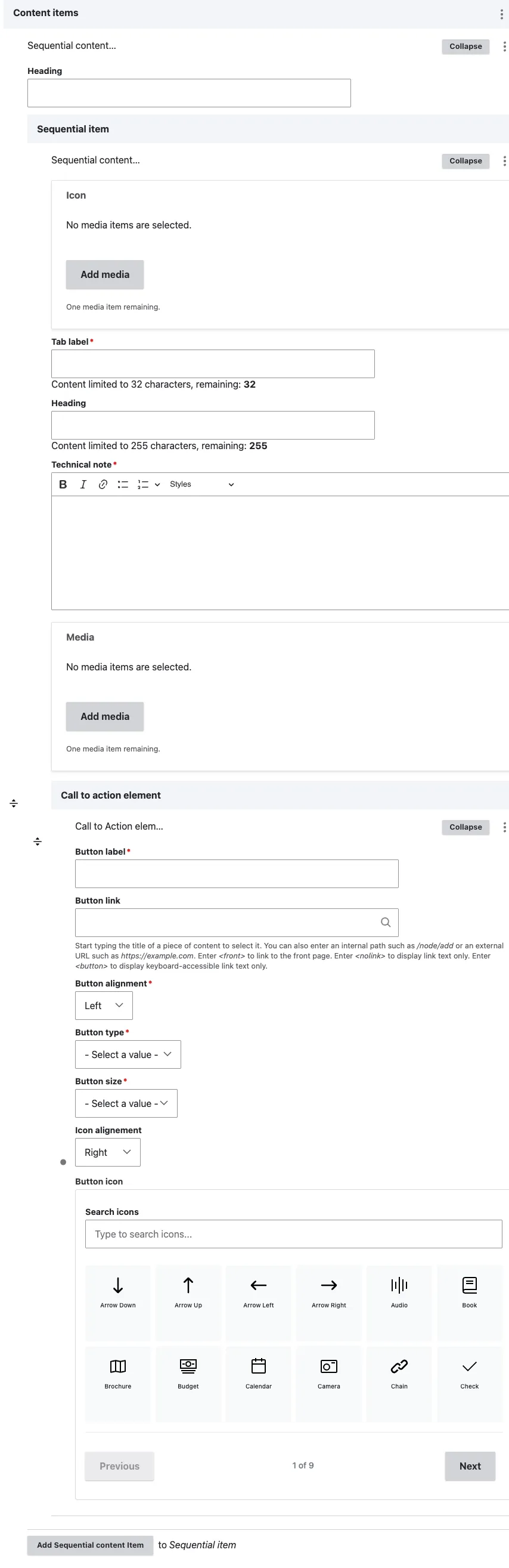
A row block appears with:
- Heading (optional) — the block title shown above the sequence.
- Sequential content item — the nested items; each one becomes a tab.
2. Fill the row header (optional)
- Heading — title above the steps (“How it works”, “From data to decision”). Optional.
3. Add the first step
Click Add Sequential content item. A sub-form opens with six fields:
- Icon (optional) — select one icon from the media library. It appears inside the tab button above the label.
- Tab label (required) — the text on the tab button, limited to 32 characters. Short labels are easier to use on mobile.
- Heading (optional) — the title inside the open panel, limited to 255 characters.
- Technical note (required) — the public-facing rich-text body of the panel. Basic formatting, links, and lists are available.
- Media (optional) — one image or AV video displayed in the panel.
- Call to action element (optional) — one embedded button. See Call to action.
The first item’s tab is open by default on the published page.
4. Add more steps
Select Add Sequential content item at the bottom of the item list for each additional tab.
5. Save
Click Save on the page-editing form.
Field explanations
| Field | What editors should enter or select |
|---|---|
| Row Heading | An optional title above the complete sequence. |
| Icon | One optional icon for the item’s tab. Use icons consistently across all items. |
| Tab label | The required tab text, limited to 32 characters. Keep it to one or two words where possible. |
| Item Heading | An optional title within the open content panel. |
| Technical note | The required public-facing rich-text explanation for the item. |
| Media | One optional image or AV video displayed in the content panel. |
| Call to action element | One optional button associated with that item. See Call to action. |
Common mistakes
- No numbering. Sequential implies order, but the rendering doesn’t insert “Step 1 / Step 2” markers automatically. Put the order in the heading.
- A single item. A sequence with one tab provides no useful interaction. Use a Structured content section instead. Add at least two items; three or more make the sequence clearer.
- Long tab labels. A sentence-length label breaks the tab strip, especially on mobile. Use one or two words where possible.
- Skipping required fields. Tab label and Technical note are required, and the form will not save an item without them.
- Too many items. More than seven items make the sequence difficult to scan. Split a longer process into two rows with their own headings.
Tips
- Three to five steps is the sweet spot. More than seven and the sequence feels like a wall.
- All icons should come from the same icon family — mixing styles undermines the visual rhythm.
- For step-by-step content that has dates rather than abstract order, use Chronological content row instead.
- Name the tabs as stages or closely related categories, not as unrelated topics.
- Images with transparent backgrounds or framing that works on a dark background are the clearest choice for the Media field.
- On mobile, the tabs form a horizontal strip. Preview the page at a narrow width to check that every label remains understandable.
- Give every tab an icon or leave icons empty on every tab. Mixing the two approaches looks uneven.
Example
The following example presents a multi-step process whose items can be opened in sequence.