Heading content item
version 0.1 Read time 1m 24s
Purpose
A Heading content item is a stand-alone heading inserted into the page’s content block stack. It separates groups of blocks without adding body text of its own.
This is the simplest content block in the system. It has one field.
When to use
- Use it to introduce a themed group of content blocks without the framing of a Structured Content Section, such as “Annual reports” or “Mission briefings”.
- Use it between two unrelated content blocks or as a target for an in-page link.
- Do not use it when body text must appear directly below the heading; use a Structured Content Section instead.
- Do not use it as the page title; use the page’s main Title field or the Header Content Row title.
Steps
1. Add the content block
In Content items, click Add Heading content item.
A sub-form opens with one field:
- Heading — the heading text. Renders at the template-configured heading level.
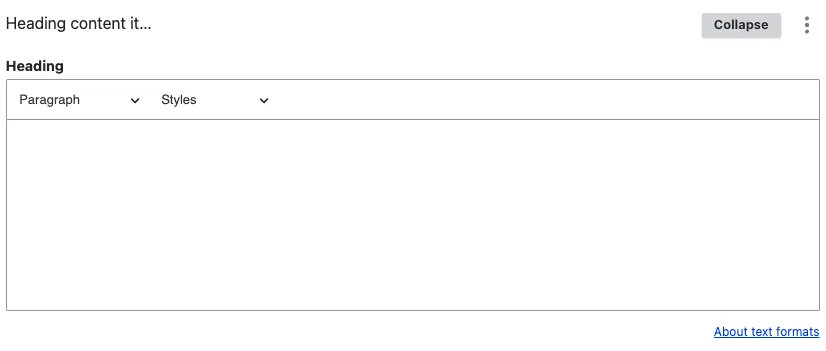
You can set the heading’s display level in two ways:
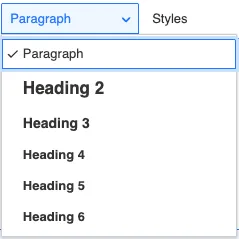
- Heading dropdown (H2 → H6) — the standard way. Pick the level that matches the page’s outline. Use this when the heading is genuinely part of the document hierarchy — it feeds the in-page table of contents and screen-reader navigation.
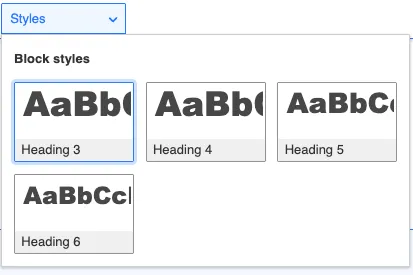
- Block styles (Heading 3 → Heading 6) — open the Styles dropdown in the rich-text toolbar to apply a heading-like visual style without enforcing the document hierarchy. Use this when you want a title that should not affect the accessibility outline — for example a decorative sub-label, or a section break in a context where adding another H2 / H3 would conflict with the parent page’s structure.
2. Save
Click Save on the page-editing form.
Field explanations
| Field or control | What editors should enter or select |
|---|---|
| Heading | The text that introduces the following group of content. |
| Heading dropdown (H2–H6) | Sets the heading’s real level in the page structure. Choose the level that follows logically from the preceding headings. |
| Block styles (Heading 3–Heading 6) | Changes the visual appearance without adding a heading to the page structure. Use only for a decorative label that should not appear in heading navigation. |
Common mistakes
- Choosing a level for its size. Heading levels describe structure, not appearance. Do not skip from H2 to H4 simply because H4 looks smaller.
- Using the block as the page H1. The page title is supplied by the main Title field or Header Content Row.
- Adding a separate heading above every block. Use the title field within a component when it already provides one.
Example
The following example uses a stand-alone heading to introduce the content blocks that follow it.
