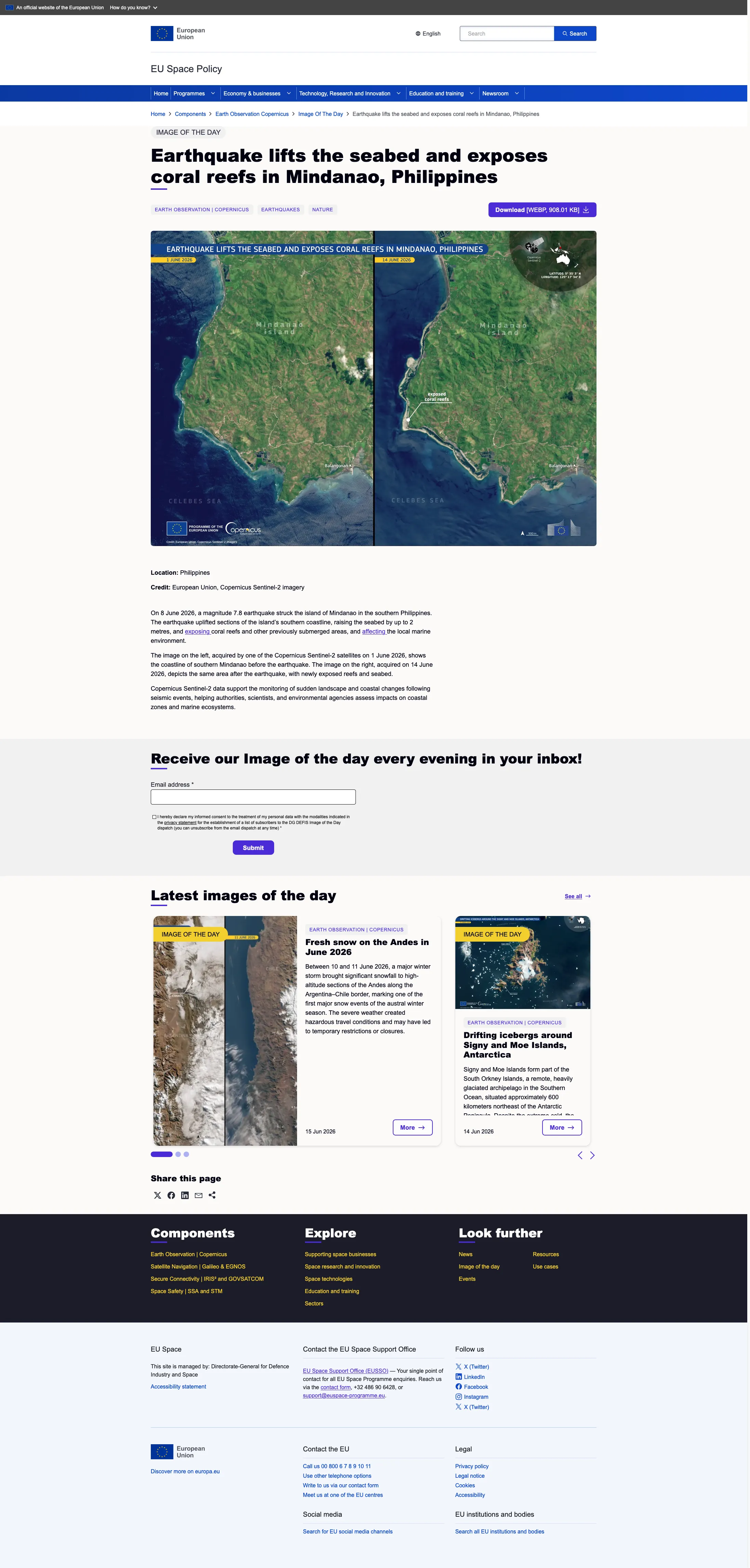
Image of the day content type
version 0.1 Read time 2m 18s
Image of the day drives the curated Image of the day rotator on the homepage and the dedicated Image of the day archive. Each entry is a single image with editorial caption, credit, location and categorisation.
Like Resource, Image of the Day does not use a stack of reusable content blocks. Its body contains the image selected from the media library, a publication date, and a rich-text caption.
Step-by-step: publish an Image of the day
1. Open the add form
Dashboard → + Add content → Image of the day.
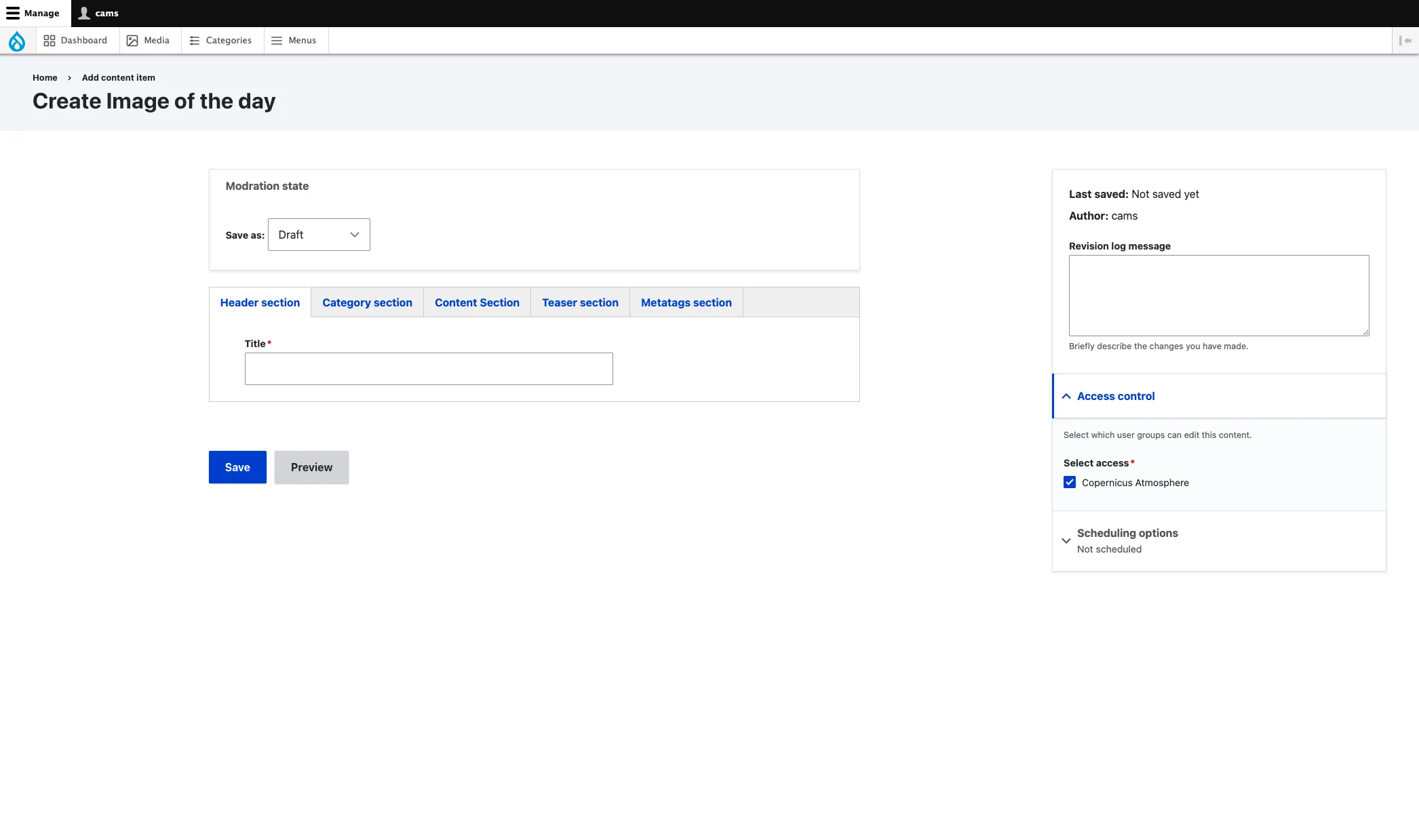
2. Header section
- Title (required) — the Image of the Day headline. Drupal also uses it as the page’s internal name and as the basis for its URL.
3. Category section
- Component (required) — programme component.
- Sector (required).
- Categories (required) — Image of the day-specific categories: Agriculture, Air Pollution, Antarctic, Arctic, Atmosphere, Biodiversity, …
4. Content Section — the image
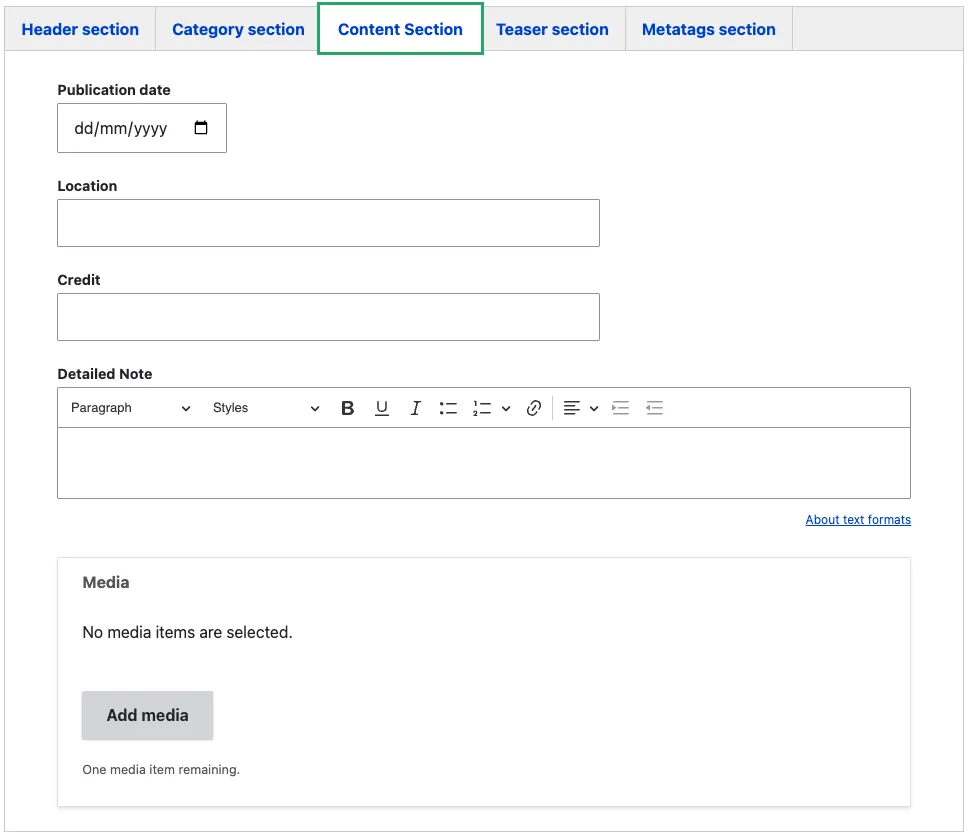
- Publication date (required) — the date the image should appear. The homepage uses this field to select the Image of the Day, so set it to the intended publication day. A page can be published in advance with a future date and will appear automatically on that date.
- Credit (string) — source / licence credit (“Copernicus Sentinel data 2026”). Appears in the front-end caption.
- Location (string) — location / region where the Image of the day was taken.
- Detailed Note (rich text) — the caption / description shown under the image on the Image of the day page. One to two paragraphs of editorial copy.
- Media — open the media library and select an existing image or upload a new one. This is the main Image of the Day visual.
5. Teaser section
These fields drive how the page appears in listings and search results:
- Teaser title (required) — short title used on cards. Often the same as the page title; override only when the page title is too long for a card.
- Teaser (required, plain text) — the short description shown under the title in cards.
6. Metatags section
Override the SEO defaults if needed. See Metadata options.
7. Sidebar
The sidebar on the right-hand side of the edit form contains the following fields:
-
Revision log message — briefly describe what you changed in this edit. This is visible in the revision history and helps other editors understand what was updated and why.
-
Access control (required) — select the organisation that owns this content. Only editors belonging to the selected organisation can edit or publish the page. In the example above, “Copernicus Atmosphere” is selected, meaning only CAMS editors can modify this article.
-
Scheduling options (optional) — set the date and time when the page should be published. This is useful when publication needs to happen outside office hours.
Common mistakes
- Missing Credit. EU Space publishes a lot of Copernicus Sentinel imagery. Never publish an Image of the day without the credit.
- Low-resolution image. Image of the day is the visual showpiece of the homepage. Use at least 1920×1080. The image media bundle auto-converts to WebP and applies image styles, but the source resolution must be high.
Tips
- The image should be visually striking — Image of the day is the editorial centrepiece of the homepage. Pick atmospheric, high-contrast images.
- The homepage selects the Image of the Day using Publication date. To prepare a future entry, set its state to Published and choose the future date when it should appear.
IOTD example