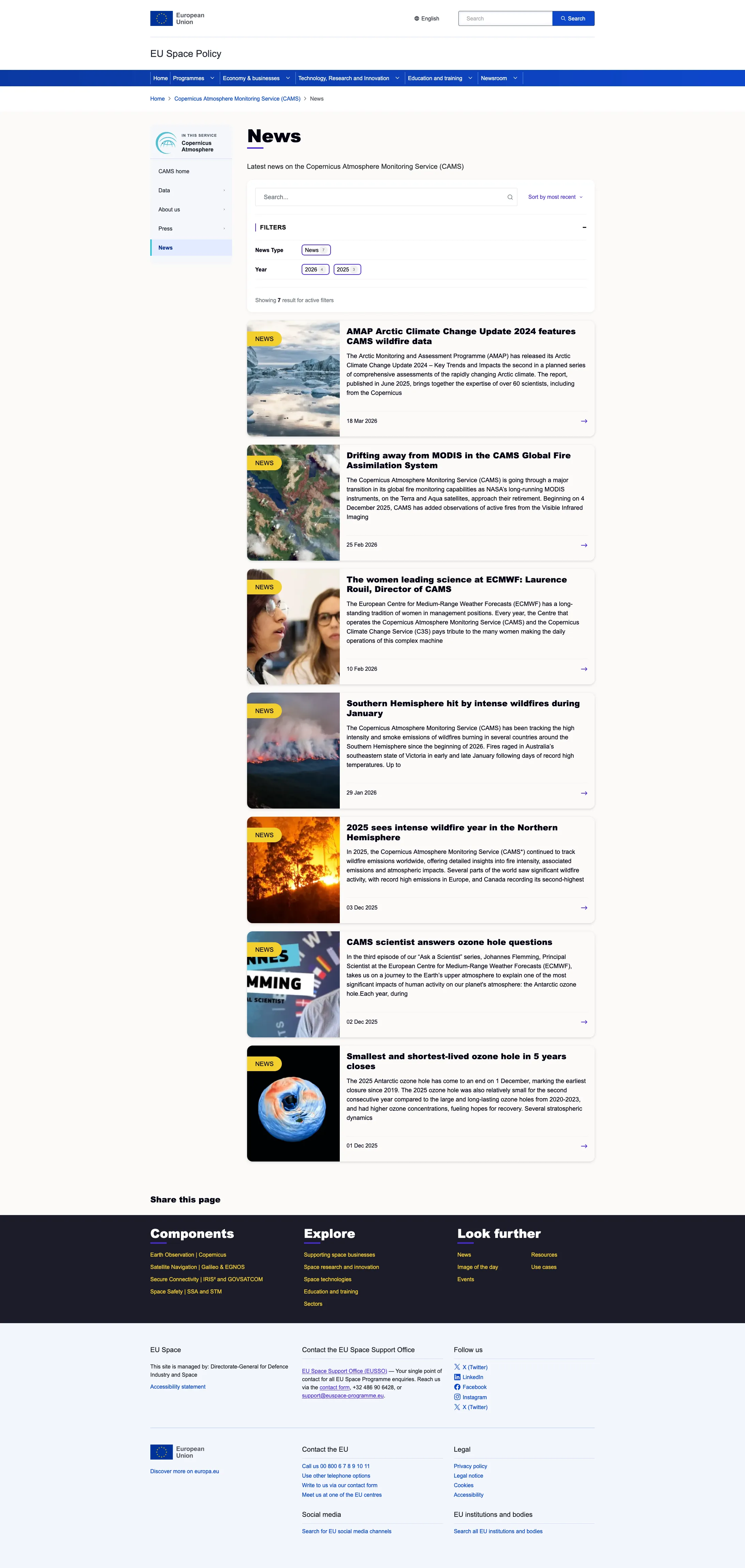
Listing Page
version 0.1 Read time 3m 27s
Purpose
A Listing Page creates an automatically updated collection of published content. It uses the portal’s search index, powered by Solr, to find content matching rules set by the editor. The page has no editable body: its results, filters, sorting, and card display are controlled through configuration fields.
Listing Pages are published immediately when saved and do not use the normal moderation workflow.
By design, they do not appear in the portal’s internal search and cannot be selected through referenced-content fields. Visitors reach a Listing Page through the site navigation or a direct link.
When to use
Use a Listing Page when visitors need an automatically updated collection, particularly when they should be able to search, filter, sort, or browse several result pages. Suitable examples include:
- the latest News from a programme component;
- all open Funding Opportunities;
- Resources for a particular service; or
- Use Cases associated with a particular sector.
Use a Referenced element instead when an editor needs to choose and order a small, fixed set of cards manually.
Steps
1. Open the add form
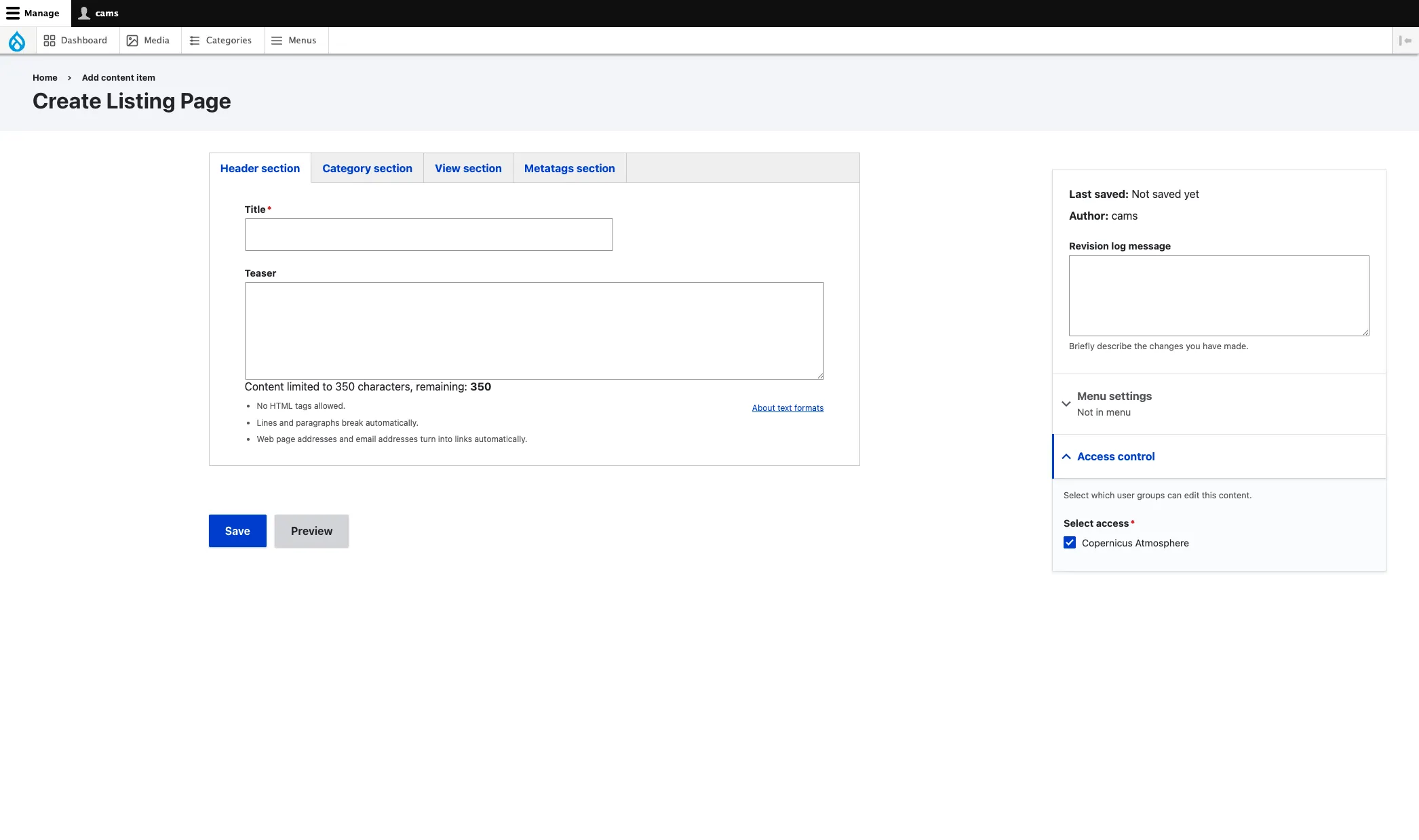
Go to Dashboard → + Add content → Listing Page.
2. Complete the Header section
Enter the required Title. Complete the optional Teaser only if it has another agreed use; Listing Pages are excluded from internal search and referenced-content selections.
3. Configure the listing
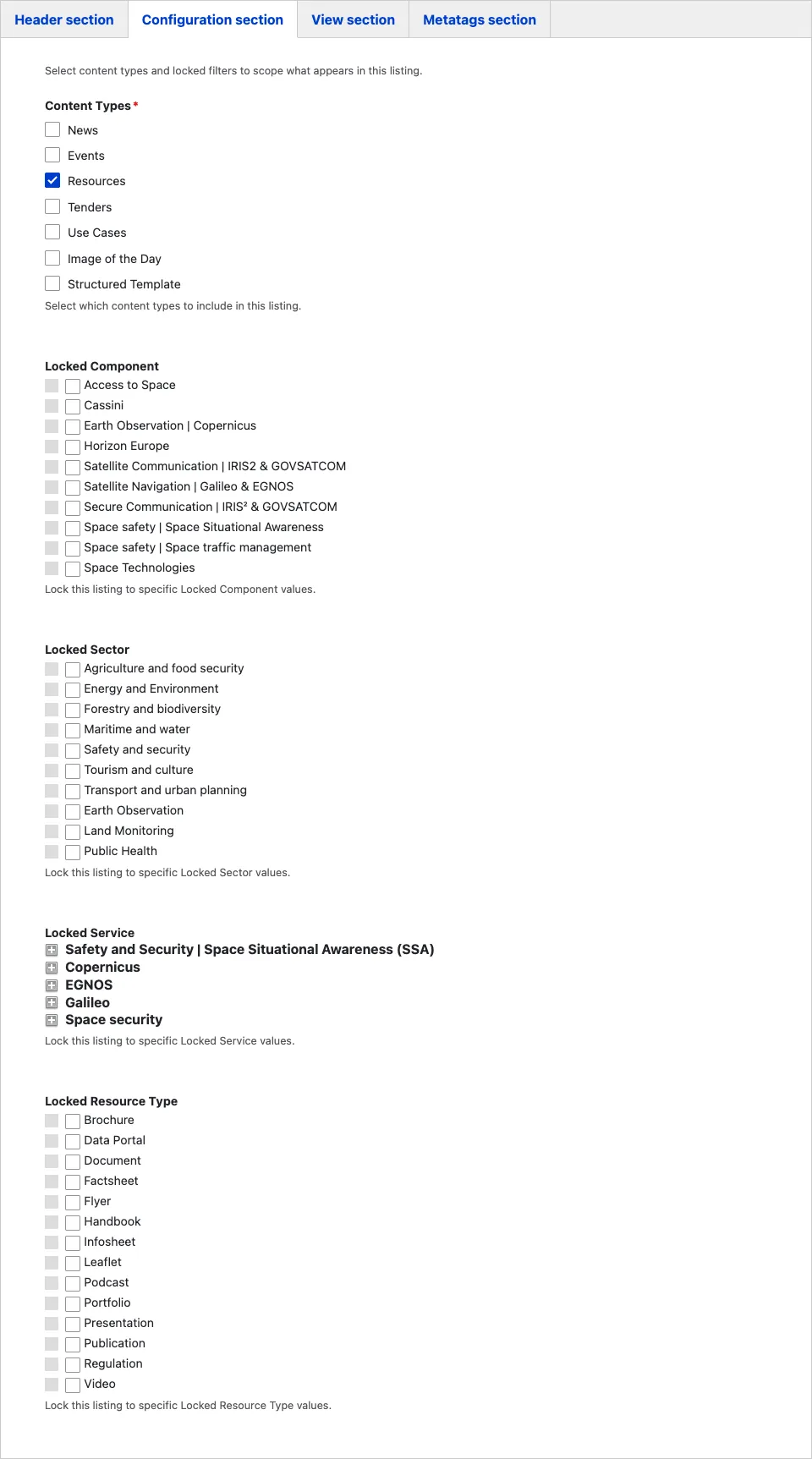
Open the Configuration section and:
- select at least one Content Type;
- add any Locked filters that define the permanent editorial scope;
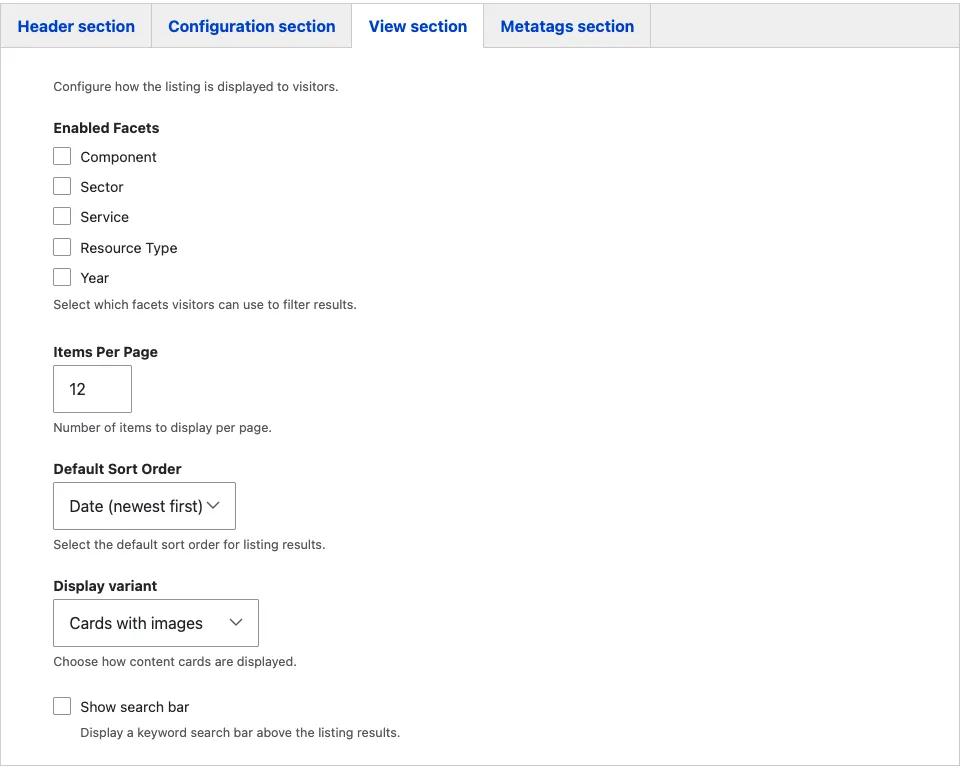
- choose the card display, initial sort order, and number of results per page;
- enable the keyword search bar when the collection will be large; and
- enable only the facets that visitors will find useful.
The available fields change after a Content Type is selected. For example, Locked Resource Type appears for Resources and Locked News Type appears for News.
4. Review the Metatags section
The automatic metadata is normally sufficient. Override it only when the Listing Page needs a different search-engine title, description, or social-sharing image. See Metadata and SEO.
5. Save and verify
Select Save. The Listing Page is published immediately.
Check the published page to confirm that:
- results appear and match the intended scope;
- facets contain useful choices;
- search, sorting, and pagination behave as expected; and
- the card presentation suits the selected content types.
The results update automatically whenever matching content is published or unpublished.
Field explanations
Header fields
| Field | What editors should enter or select |
|---|---|
| Title | The required page title and visible H1. |
| Teaser | Optional plain text. It is not used for internal search or referenced-content cards because Listing Pages are excluded from both. |
Target content
| Field | What editors should enter or select |
|---|---|
| Content Types | Select one or more types to include: News, Events, Resources, Funding Opportunities, Use Cases, Image of the Day, or Structured Template. The listing is empty if no type is selected. |
Locked filters
Locked filters permanently narrow the results. Visitors cannot remove them. Leave a locked filter empty when content with any value in that category should be included.
| Field | What it restricts |
|---|---|
| Locked Component | One or more programme components. Available for News, Events, Resources, Use Cases, Funding Opportunities, Image of the Day, and Structured Template. |
| Locked Sector | One or more sectors. Available for News, Events, Resources, Use Cases, Image of the Day, and Structured Template. |
| Locked Service | One or more services or service branches. Expand a parent service to view its sub-services. |
| Locked News Type | Selected News formats. Appears when News is selected. |
| Locked Event Type | Selected Event formats. Appears when Events is selected. |
| Locked Resource Type | Selected Resource formats. Appears when Resources are selected. |
| Locked Categories | Selected Image of the Day categories. Appears when Image of the Day is selected. |
Display and visitor controls
| Field | What editors should enter or select |
|---|---|
| Display variant | Cards with images suits visually led content. Cards without images creates a more compact presentation for document and Resource listings. Leave empty to use the site default. |
| Default Sort Order | The initial result order: newest or oldest date, or title A–Z or Z–A. Newest first is the usual choice for time-sensitive content. |
| Items Per Page | The number of cards displayed before pagination. The site default is 12; common alternatives are 9 or 24. |
| Show search bar | Adds a keyword field above the results. Enable it for a large collection or archive. |
| Enabled Facets | Adds visitor filters such as Component, Sector, Service, News Type, Event Type, Resource Type, Categories, or Year. Enable only facets that contain meaningful variety. |
How the settings combine
The results are the intersection of:
- the selected Content Types;
- the permanent Locked filters;
- any facets or keywords applied by the visitor; and
- the selected sorting and pagination settings.
For example, selecting Resources, locking Component to Copernicus, choosing newest-first sorting, and enabling Resource Type and Year facets creates a listing of Copernicus Resources that visitors can refine by format and year.
Automatic breadcrumb behaviour
When a visitor opens a card from a Listing Page, the destination page’s breadcrumb begins from that Listing Page. Editors do not configure this separately. If the destination page is opened directly from a shared URL or an external search engine, it uses the site’s default breadcrumb hierarchy.
Common mistakes
- No Content Type selected. The Listing Page has no results. Select at least one type.
- Locked filters match no published content. An incompatible combination, such as a Component and Sector that are never used together, produces an empty listing. Check the existing content before finalising the rules.
- A facet repeats a locked filter. Visitors cannot refine a value that is already fixed. Enable facets only where the available results contain several values.
- The card style does not suit the content. Image of the Day, Use Cases, and News normally benefit from image cards. Compact cards are more suitable for document and Resource archives.
- Too many facets are enabled. More than four or five filters can overwhelm the side panel. Keep only those visitors are likely to use.
- The page name describes a scope that is not configured. A page called “Copernicus Marine resources” must use the corresponding locked Service or Component value; the title alone does not filter results.
Example
Latest Copernicus News
- Content Types: News
- Locked Component: Copernicus
- Default Sort Order: Date, newest first
- Enabled Facets: News Type, Sector, Year
- Display variant: Cards with images
- Items Per Page: 12
Open Funding Opportunities
- Content Types: Funding Opportunities
- Locked filters: none
- Default Sort Order: Date, newest first
- Enabled Facets: Component, Year
- Display variant: Cards without images
- Items Per Page: 24
Maritime Use Cases
- Content Types: Use Cases
- Locked Sector: Maritime and water
- Default Sort Order: Date, newest first
- Enabled Facets: Service
- Display variant: Cards with images
The following screenshot shows a published Listing Page with its configured results and visitor controls.